Reading & writing mail
Your everyday inbox: threads, search, composing, attachments.
Inbox & views
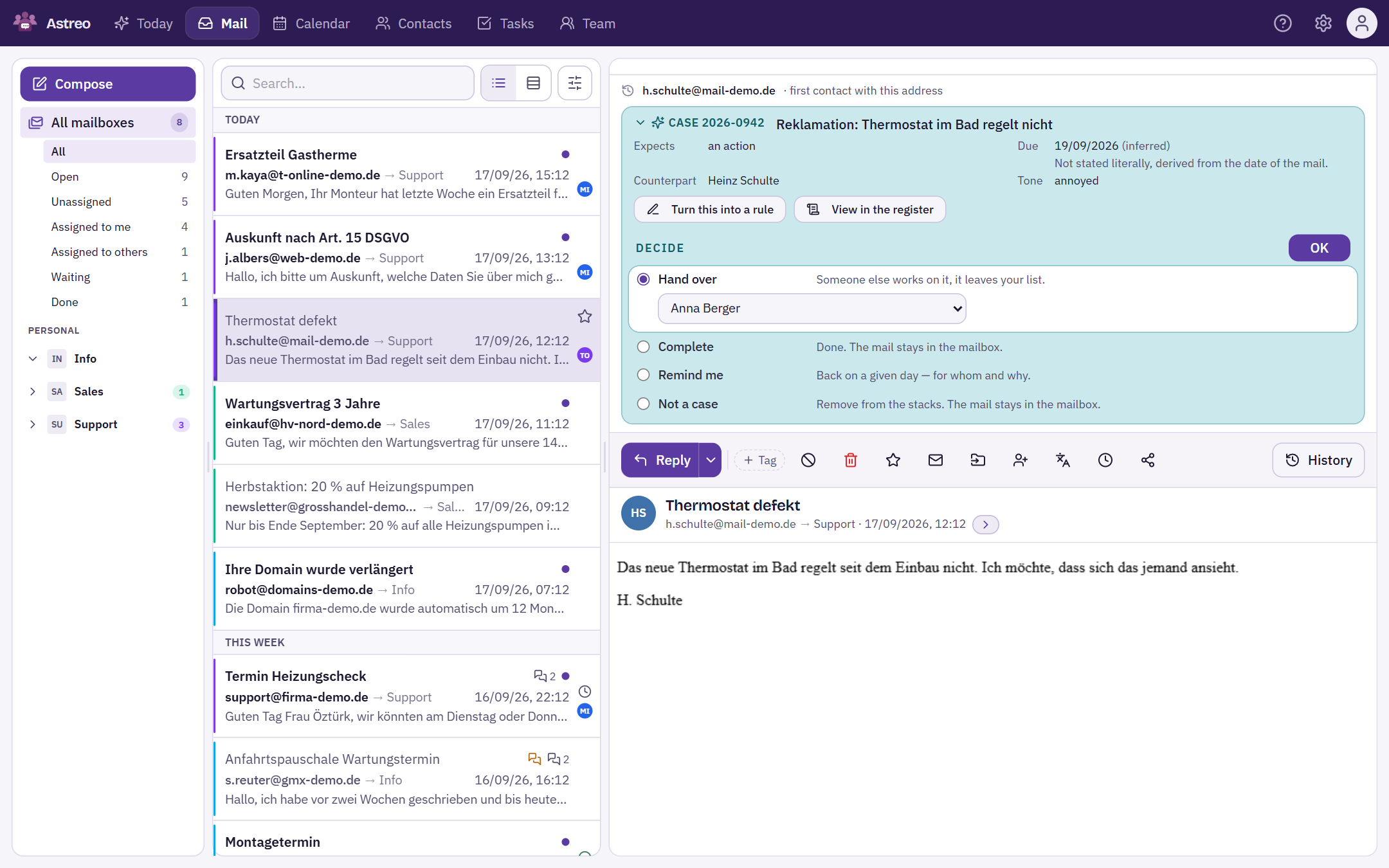
The interface has three columns: on the left the mailboxes with their folders, in the middle the threads of the selected mailbox – or of all mailboxes together under "All mailboxes" –, on the right the open mail. You can expand several mailboxes in the sidebar at the same time; the arrow to the left of the name expands and collapses it, a click on the name selects the mailbox.
Above the list you can sort (e.g. by date) and filter quickly: only unread, only starred or only threads assigned to me. If you work in a team, each mailbox also has the views such as "Unassigned" or "Waiting".
Threads & conversations
Astreo groups related messages into a thread (via the mail headers
In-Reply-To/References). Actions like starring, assigning, tagging or the internal chat
apply to the whole thread.
The mail header
Above the mail you see the sender, the mailbox and the date. The arrow next to them ("Show recipients") expands the recipients, split into To and Cc; your own mailbox is highlighted. If your mailbox is not in the To field but only in Cc, the header shows the label "Cc only" – usually no reply is expected from you.
Above it sits the contact bar: what Astreo already knows about the sender address. For example "first contact with this address", how many other cases there are with it and how many of them are open, when you last wrote and who last handled it. If there are open commitments towards this address, they come first.
External images in mails are blocked to protect you from tracking until you choose "Load images". That way a tracking pixel cannot tell the sender that, and when, you opened the mail.
The action row
Below the header is the action row: first Reply (with the arrow next to it for "Reply all" and "Forward"), then tag, spam, delete, star, read/unread, move, assign, translate, snooze and share. On a phone the less frequent actions sit in a menu.
On the far right, set apart, is History. Everything to its left does something with the mail; History tells you about it.
In a shared mailbox the row only shows what you are allowed to do there. If you lack the right to delete, for example, the button is missing too – see action rights. The same applies to the bar that appears when you select several mails: it only offers what you may do with all of the selected ones.
History
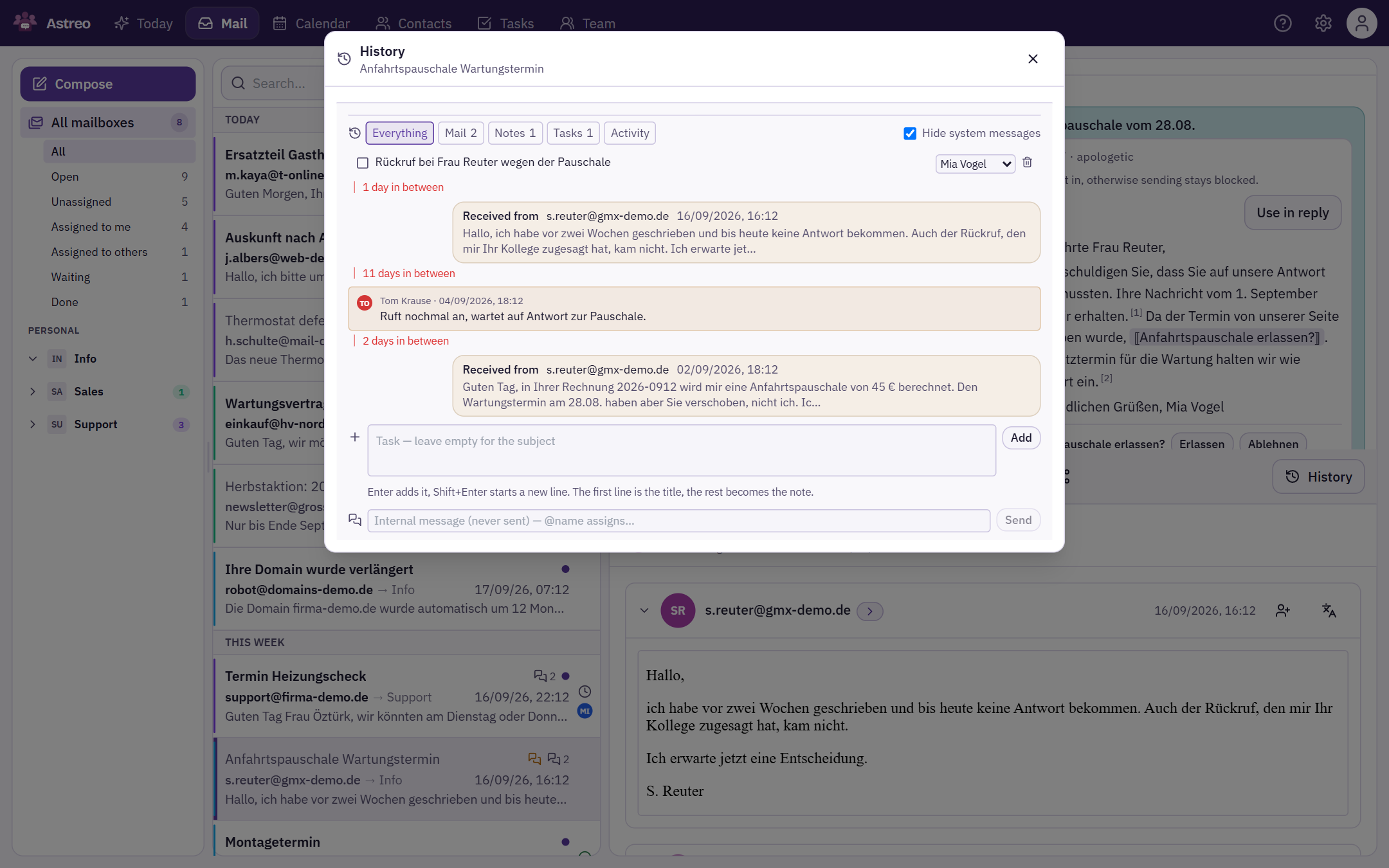
History opens as a window over the mail and tells the whole case: when which mail arrived, who replied when, which chat messages and tasks were added – newest first. Between the entries it shows how much time passed ("3 days in between"). Replies stored in another folder (usually "Sent") are included.
- The filters at the top (Everything, Mail, Notes, Tasks, Activity) take away what doesn't matter right now. The last one shows the log of actions only.
- "Hide system messages" is ticked by default. Untick it to also see the steps of the automation, for example from Astreo Clear. Your choice is remembered.
- At the bottom of the window you create tasks and write in the internal chat.
Search
The search at the top looks through subject, sender, recipients (To and Cc) and content using full-text search. So you can find a conversation again even if all you remember is who was on the distribution list. In "All mailboxes" it searches all your mailboxes; in a single mailbox, only that one.
Spam and Trash are not searched. When people search, they are almost always looking for a mail they meant to keep. The flip side: a mail you deleted by mistake won't turn up in search – open the Trash folder directly instead.
Composing & sending
- Compose at the top opens a new message; you choose the sending account.
- When you reply, Astreo sets the correct headers (
In-Reply-To,References) so the reply lands cleanly in the thread. The original is quoted without passing through the editor, so its formatting is preserved. - The editor is HTML-capable; signatures and templates can be inserted in one click.
- Above the send button you see who the mail goes to: "Going to 3 recipients — all internal." or "Going to 3 recipients, 1 external: …" with the external addresses. A wrong recipient stands out before the mail has left.
- If the text sounds like it mentions an attachment but no file is attached, Astreo asks before sending.
Send later & snooze
Two things that are easily confused:
- Send later (in the compose window): the mail only goes out at the chosen time. The button then reads "Schedule send". Scheduled sends are listed as a notice at the top of the mail view ("2 sends scheduled") and can be cancelled there – the text is lost when you do.
- Snooze (in the action row): the mail disappears from the list and comes back at the chosen time – this evening, tomorrow morning or next week. Nothing is sent.
A follow-up ("Remind me") for a case, with a person and a reason, is part of Astreo Clear.
Attachments & virus scan
You add attachments while composing; incoming attachments are listed below the mail. Every attachment is automatically scanned for malware (ClamAV) before you can open it. If the scan isn't finished yet or fails, the attachment is not delivered.
- View opens PDFs, images and text files right in the browser, without downloading. Other file types are downloaded.
- You can also drag an attachment out of the mail, for example onto your desktop or into a folder. This works in Chrome and Edge; in Firefox only the file's address arrives.
When Astreo has been updated
After a new release a bar appears at the top: "Astreo has been updated. Please reload the page." Astreo does not reload by itself, so text you have started is not lost. Save any open drafts, then click "Reload".