Company, access & billing
Sign up and try, bring in colleagues, manage seats and change your plan.
In Astreo every account belongs to exactly one company. The company holds the seats, the plan and the billing details; teams and mailboxes work inside it. This chapter describes how a company is created, how colleagues join and where owners and admins manage seats and plan.
The sign-in screen
On app.astreo.de there are three ways in, clearly separated:
- Sign in – for everyone who already has an account.
- Create an account (“New here?”) – for a new company.
- I was invited – in case the invitation didn't arrive; Astreo sends it again.
Signing up and trying Astreo
The form asks for the company (it will appear on the invoice; if you work alone, use your own name), your name, the email address and a password. The password needs at least 12 characters with lower- and upper-case letters, a digit and a special character; while you type you can see what is still missing.
There is also a required checkbox: new companies start with Astreo Clear. By ticking it you agree that an AI from Mistral AI (France) analyses the inbox of your connected mailboxes, going back 90 days. Nothing is sent without you; mailboxes can be excluded and Clear can be turned off at any time.
After submitting, nothing is created yet – no account, no company, no trial. You receive an email; only the link in it (valid for 24 hours) creates your company and signs you in. Nothing arrived? Check your spam folder.
That starts the trial: 14 days, all features available, no payment method needed. How long it still runs is shown under Billing & plan. Then connect your first mailbox – see Getting started and Connecting mailboxes. If Microsoft shows “Need admin approval”, read Approve Astreo in Microsoft 365.
Ways to sign in
- Password – with the address and password from signing up. In your profile you can additionally set up two-factor sign-in with an authenticator app. During the trial it is optional; once your company has booked a plan, it is mandatory for signing in with a password.
- Sign in with Google or Sign in with Microsoft – with the same address you end up in the same account.
- Login link – Astreo sends a link to your address, valid for 15 minutes.
“Stay signed in” keeps you signed in on this device for 30 days. Without it, signing in ends when the browser closes. You can see and end your signed-in devices in your profile under Active sessions.
Inviting colleagues
Anyone who should work with you gets a seat in your company: owners and admins enter the address under Settings → Billing & plan, and Astreo sends an invitation. The person then appears in the seat list as invited, together with the date the invitation expires; you can withdraw it there.
Invited people see on their first sign-in who invited them to which company, and later in their profile “Member of … since …”. That makes it clear why they are here.
A booked seat does not put anyone into a team. You bring the person into a team under Team by picking them from the company – see Team & members.
An address that already belongs to another company in Astreo can't be invited: an account belongs to exactly one company. If the plan has no free seat left, joining fails with a corresponding message.
Join requests
If someone signs up without an invitation using an address whose company already uses Astreo, Astreo does not create a second, empty company – otherwise the person would have their own trial and no access to the shared mailboxes. Instead they see “Your company is already here” and can request to join.
The request appears for the team under Join requests. If someone accepts it, the person is in; if someone declines, they see that the next time they sign in. Keep in mind: the same company domain is no proof of authorisation.
Billing & plan
Settings → Billing & plan is only visible to the company's owners and admins; the restriction is enforced by the server, not just the menu. The page has four parts.
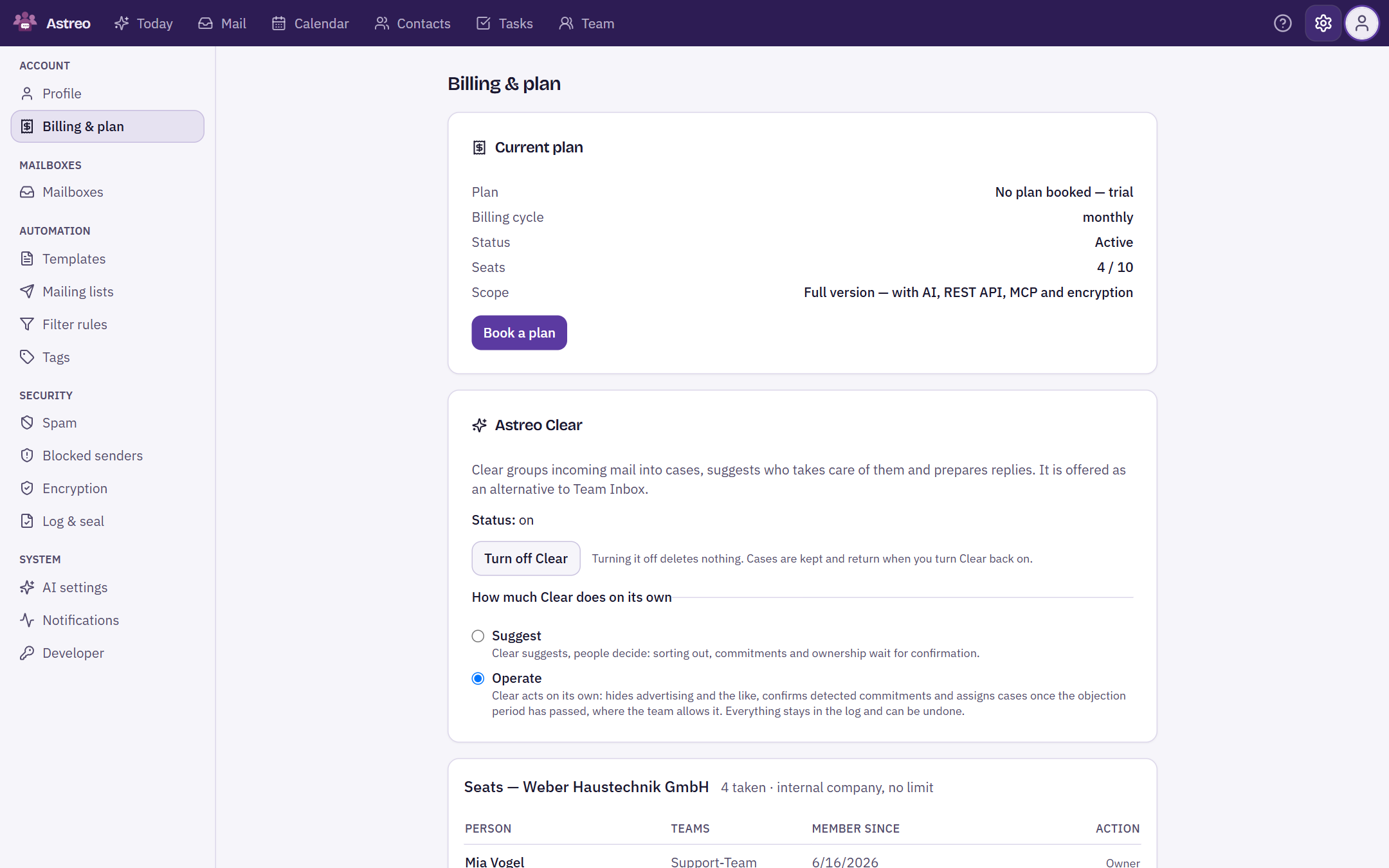
Current plan
Plan, billing cycle (monthly or yearly), status, seats taken, the end of the trial and the scope:
- Full version – with AI, REST API, MCP and encryption.
- Starter – the same Team Inbox without AI, REST API, MCP and encryption.
Book a plan or Change plan opens the selection in a window. Only plans with the same billing cycle are offered – the cycle can't be changed during a running period. Prices are on the pricing page.
Astreo Clear
The card shows whether Astreo Clear is on for the company, and turns it on and off during the trial – only after consent, and turning it off deletes nothing. Once Clear is on, owners and admins also choose there how much Clear does on its own: “Suggest” or “Operate”. Details are under Turning Clear on and Suggest or operate.
Seats
A seat is a person. The table shows who has one, which teams the person is in and since when they have been a member.
- Add seat invites a person. During the trial it shows how many free seats are left; more come with a plan. After the trial, a new seat is charged from the next billing onwards.
- Replace invites a successor and gives them the seat.
- Release seat removes a person's access; their team mailboxes pass to the team owner. The seat stays paid until you give it up.
- If you pay for more seats than are taken, “Reduce to the seats in use” lowers the number from the next billing. The running period is not refunded pro rata.
Switching between Starter and full version
A company has one edition for all seats. Upgrading to the full version takes effect immediately, downgrading to Starter at the end of the running period; both are charged from the next billing. A scheduled switch is shown with its date on the page.
Before a downgrade, Astreo tells you what will be irrevocably deleted on the switch date: API tokens, webhooks and encryption keys, each with a count. If private keys are among them, Astreo points this out separately – emails received encrypted with them can no longer be read afterwards. Back them up beforehand if you want to keep them. A later upgrade restores none of it.
Billing details and consents
Before you can order anything, Astreo needs:
- the billing address: company, billing email, street, postcode, city, country and optionally the VAT ID,
- the business confirmation – Astreo is aimed exclusively at businesses,
- consent to the data processing agreement (DPA) and the terms and conditions.
For the DPA and the terms, the page shows when and to which version you consented. When a new version applies, Astreo asks for consent once again – the old consent referred to a different text.
Invoices are created by the becom CRM and paid via Mollie; invoices arrive by email. All prices are net plus VAT, and features are unlocked shortly after payment. If your company is marked as internal, there are no billing details and no plans.