Deciding a case
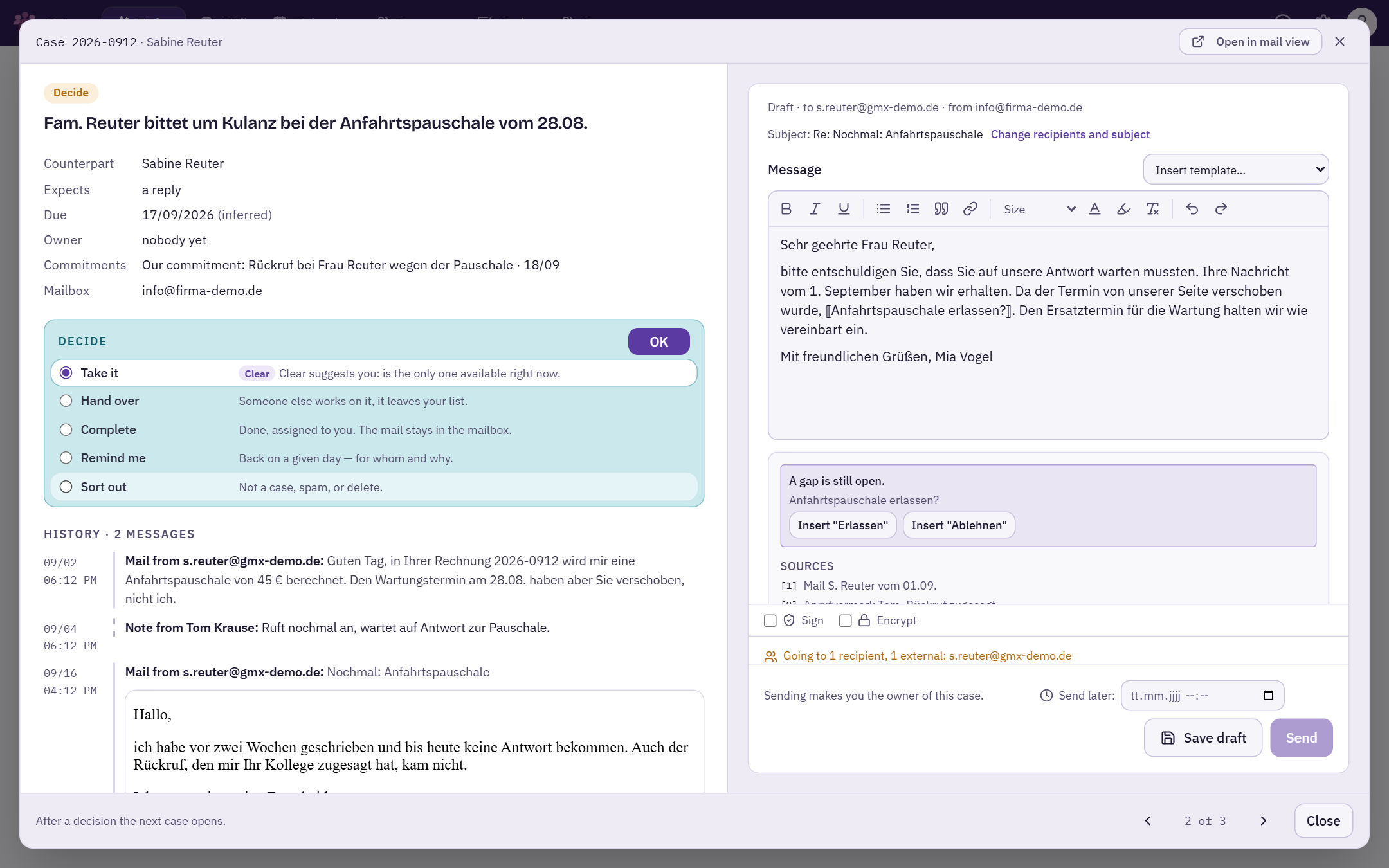
The case window: history and decision on the left, the prepared draft with evidence on the right.
Clicking a row on the Today page opens the case in a window above the list. It holds everything you need to decide: the context on the left, the reply on the right. The list stays behind it.
The case window
At the top you see the reference number and the counterpart, and next to it “Open in mail view” — for anything the mail view does better: forwarding, opening attachments, printing.
Left: the context
- Key facts — counterpart, what is expected, deadline (marked “inferred” if the mail names no date), who owns the case, open commitments and the mailbox.
- Decide — the box where the decision is made. See below.
- History — all mails and notes of the case in chronological order, including call notes and your own replies. Click a mail to expand it. External images stay blocked at first to protect against tracking pixels.
- “Create a rule from this case” — for when you notice while reading “this is how we always do it”. One sentence is enough; more under Rules & traceability.
Right: the reply
On the right is the reply field with Clear's draft, free to edit. If there is no draft, it is empty and carries your signature; “Suggest reply” still creates one. How to read the draft is explained further down.
Next, previous, close
After every decision and after sending, the next case in the stack opens. At the bottom right you can page through manually with the arrows or the ← → keys; the “2 of 3” indicator shows where you are.
Complete is not Close. “Complete” in the Decide box finishes the case. “Close” at the bottom right — or Esc — only closes the window; nothing happens to the case.
Decide: one list, one button
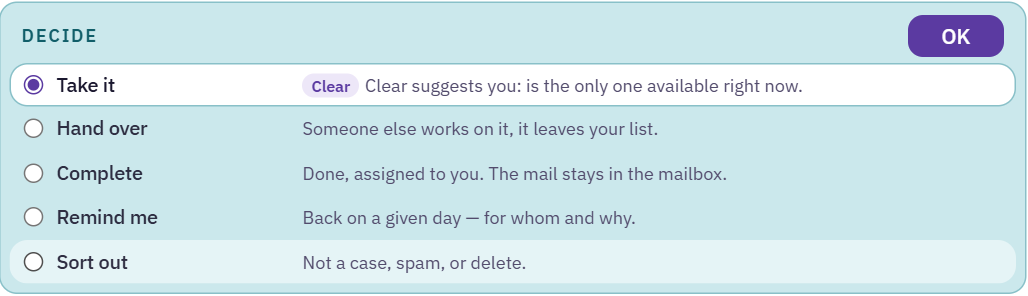
Everything that can happen to a case is in the “Decide” box. Each option is a row with half a sentence saying what happens next. You pick a row and confirm with OK. The button stays fixed at the top right of the box and does not move with your selection.
- Take it — “You work on it, it stays in your stack.” The window stays open; usually you reply straight away.
- Hand over — “Someone else works on it, it leaves your list.” You pick the person.
- Complete — “Done. The mail stays in the mailbox.” If the case does not belong to anyone yet, it is assigned to you, and the row says so beforehand.
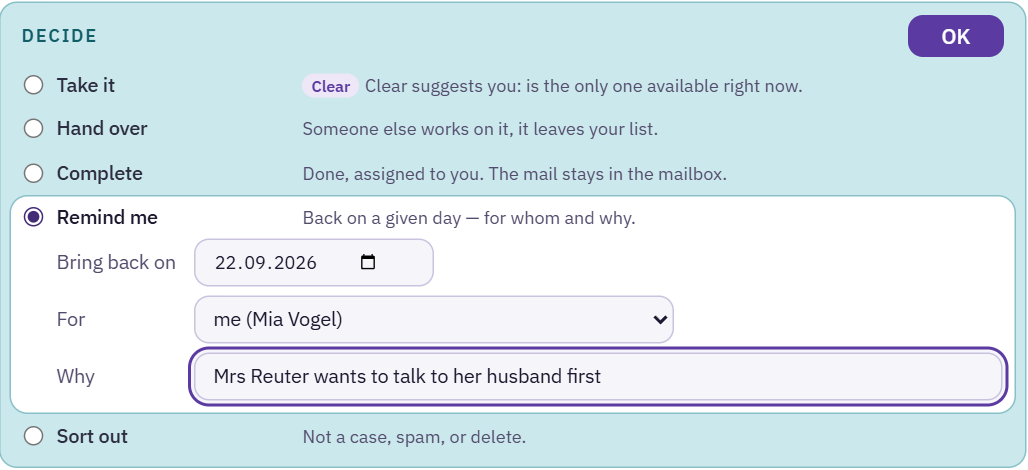
- Remind me — “Back on a given day — for whom and why.”
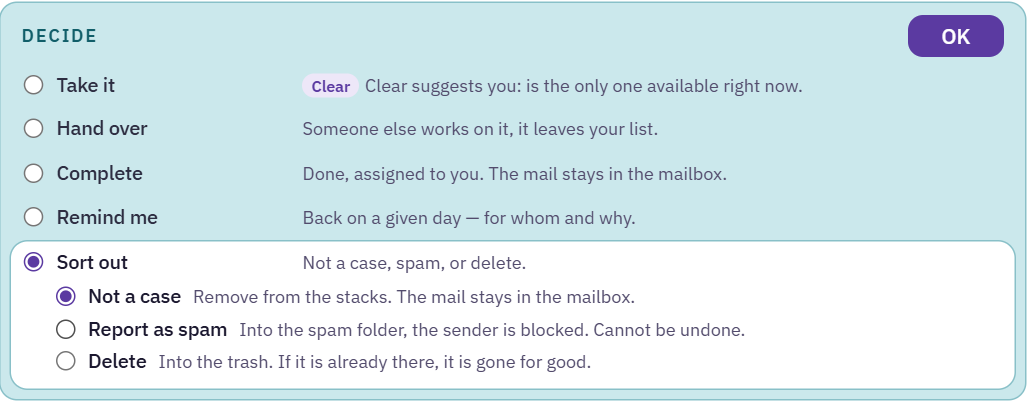
- Sort out — “Not a case, spam, or delete.”
Clear's suggestion
If Clear has a recommendation, the matching row is preselected and carries the “Clear” badge with a reason, for example “Clear suggests you: is the only one available right now.” If you disagree, simply pick another row. There is no “No” button.
Remind me: when, for whom, why
A reminder is the honest form of “not now”. It needs three details:
- Bring back on — the day.
- For — who the case will be with then. Setting it for someone else requires the permission to assign.
- Why — what you are waiting for, such as “call back from Mrs Reuter”.
Until then the case sits under “Watch” and stays visible to the team. The reason is saved as a note in the history — so on the day itself, everyone knows what was being waited for. An overdue deadline or a commitment that falls due still brings the case back earlier.
Sort out
“Sort out” offers three ways:
- Not a case — remove it from the stacks. The mail stays in the mailbox, the case moves to “Done” and can be brought back with “Case again”.
- Report as spam — into the spam folder, and the sender is blocked. This cannot be undone here; Astreo asks first.
- Delete — into the trash. If the mail is already there, it is gone for good; Astreo asks first here too.
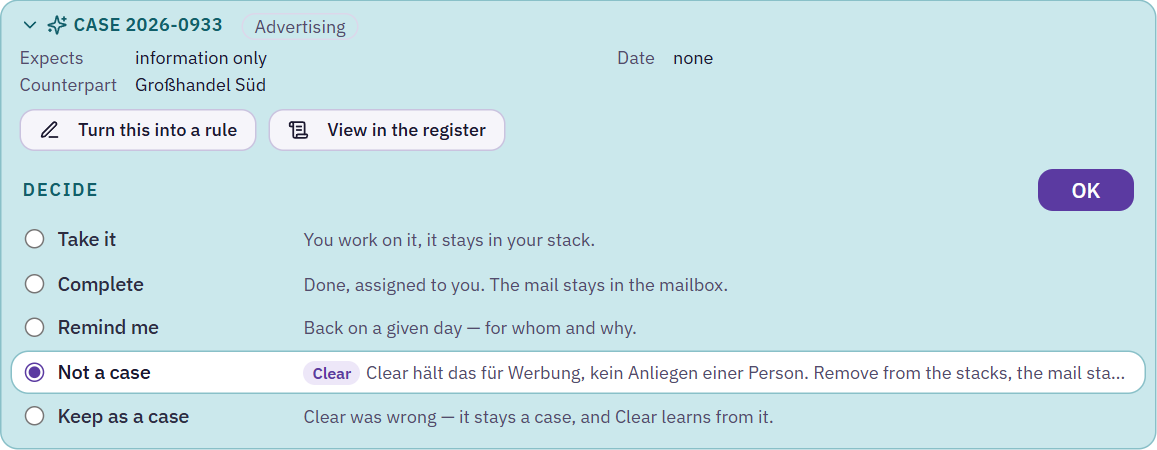
If Clear itself thinks a mail is not a case, “Not a case” is preselected with a reason. If Clear is wrong, choose “Keep as a case” — Clear remembers the correction.
Undo
After a decision, “Undo” appears for a few seconds in the list where the case was. It stays there even if you are already working on the next case in the window. “Report as spam” and “Delete” are the exceptions, which is why Astreo asks first for those.
Only what you are allowed to do
The box only offers what your team permissions allow: without permission to assign, Hand over and reminders for others are missing; without permission to complete, Complete is missing; without the spam or delete permission, those options are missing. If an action is still rejected, the message names the missing permission and says that an admin can grant it under “Team”.
The draft with sources
Clear does not claim anything without a source. The numbers in the text point to the “Sources” list below the reply field: the mail from 1 September, a colleague's call note, one of your house rules. That way you check every sentence instead of writing from scratch.
Gaps
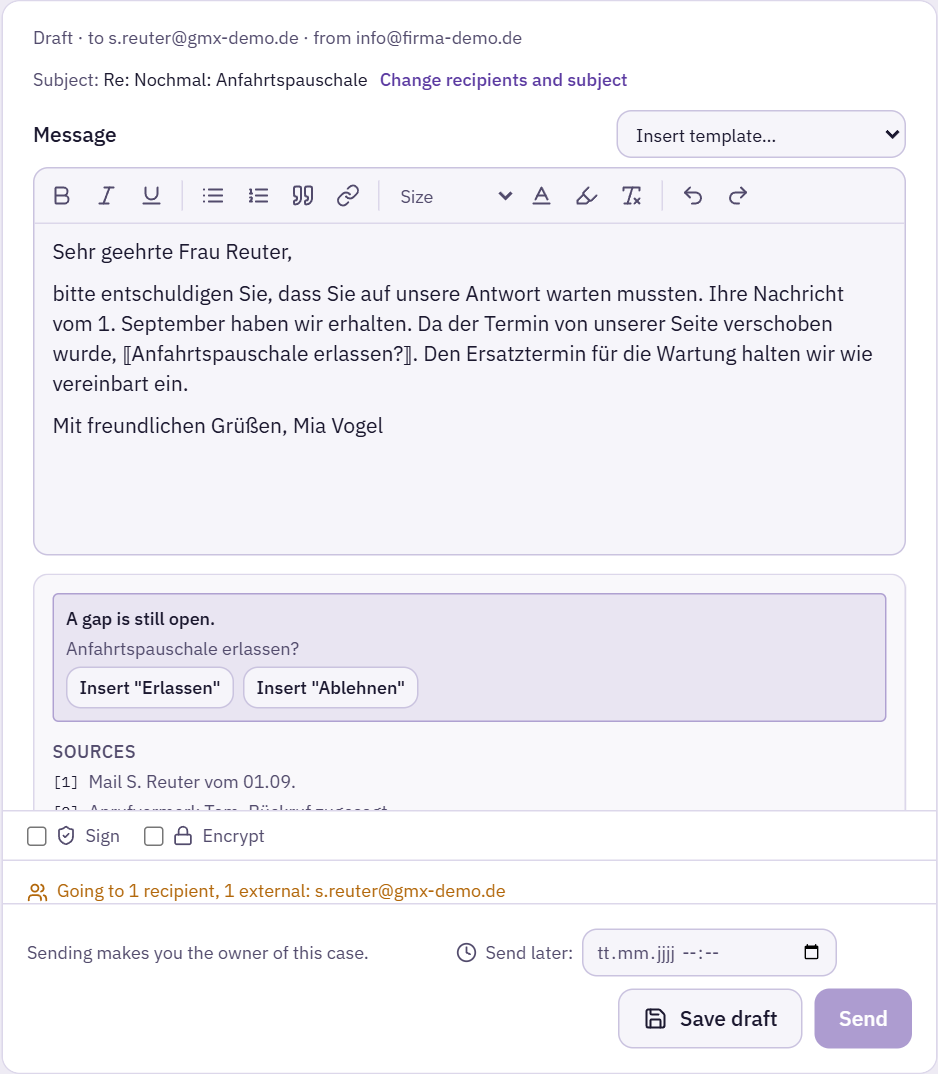
Anything Clear cannot back up, or anything a person has to decide — such as “Waive the call-out fee?” — appears as a gap in the text. Below the field, Clear offers the possible answers; clicking Insert “Erlassen” or Insert “Ablehnen” inserts the matching sentence (the options are written in the language of the reply). You can also replace the gap by hand.
As long as a gap remains in the text, “Send” stays locked — in the browser and on the server as well.
Sending takes ownership
Next to the Send button it says “Sending makes you the owner of this case.” If the case does not belong to anyone yet, it is assigned to you. Your reply does not take away a case that already belongs to someone else. Instead of sending right away, you can also schedule the reply or save it as a draft.
The same case in the mail view
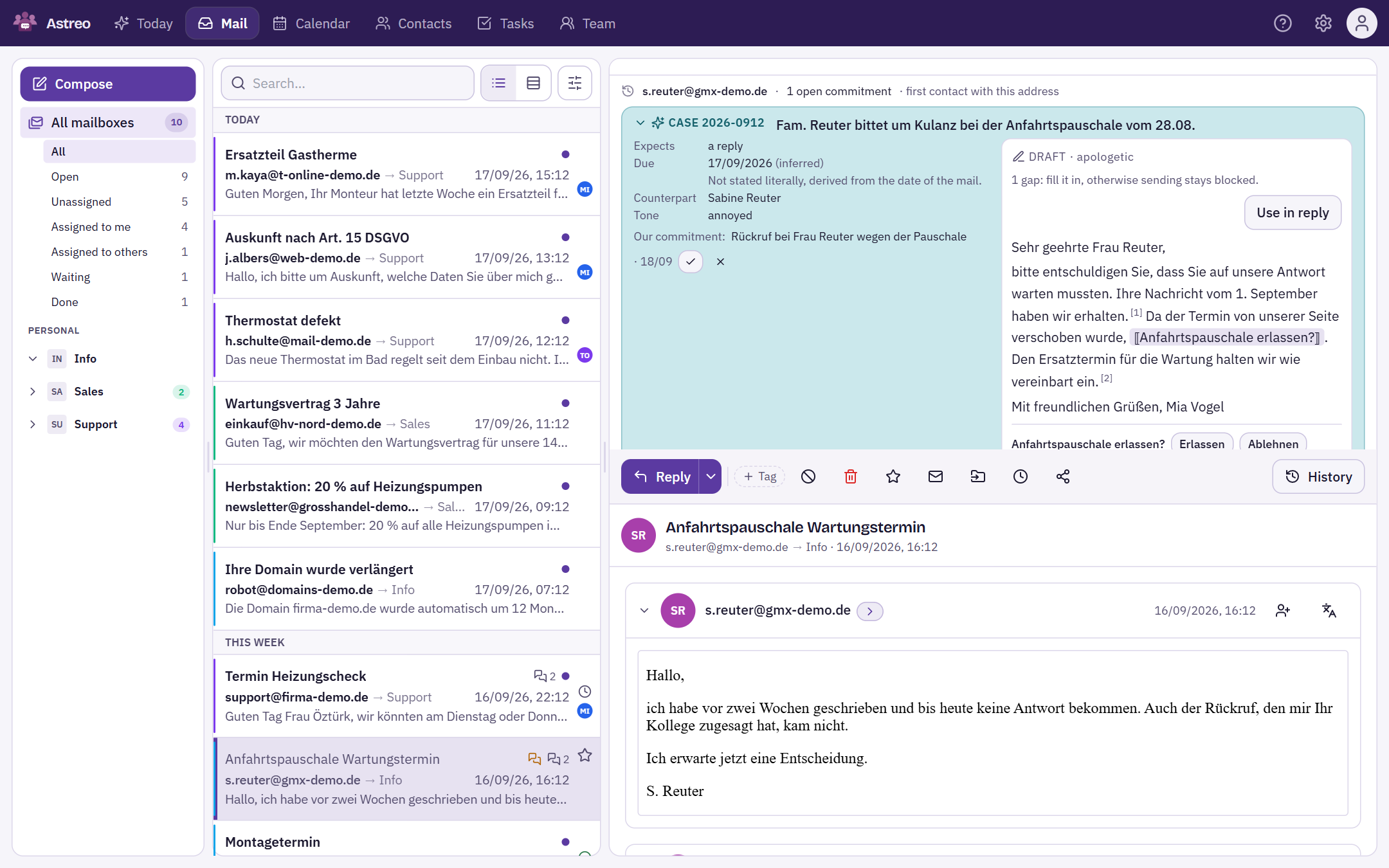
If you prefer working in the mail view, you will find the same case there: above the mail there is a box with the key facts, the draft and, below them, the same “Decide” box. “Collapse case” makes it narrow; if it grows, it scrolls on its own and the mail below stays visible. The box also offers “Turn this into a rule” and “View in the register”.
The mail view has no “Sort out”: spam and delete are already in the bar above the mail. “Not a case” is a row of its own in the box. Afterwards, Astreo asks in a short notice whether future mail from this sender should also be hidden — as a question, never as a default.