Set up AI
Set up auto-translation, style guidance and reply suggestions in the AI settings.
Astreo assists your writing with AI - reply suggestions, translation and grammar, always as an editable draft, never auto-sent. In the AI settings you set auto-translation, target language and your preferred style. This guide walks you through the setup.
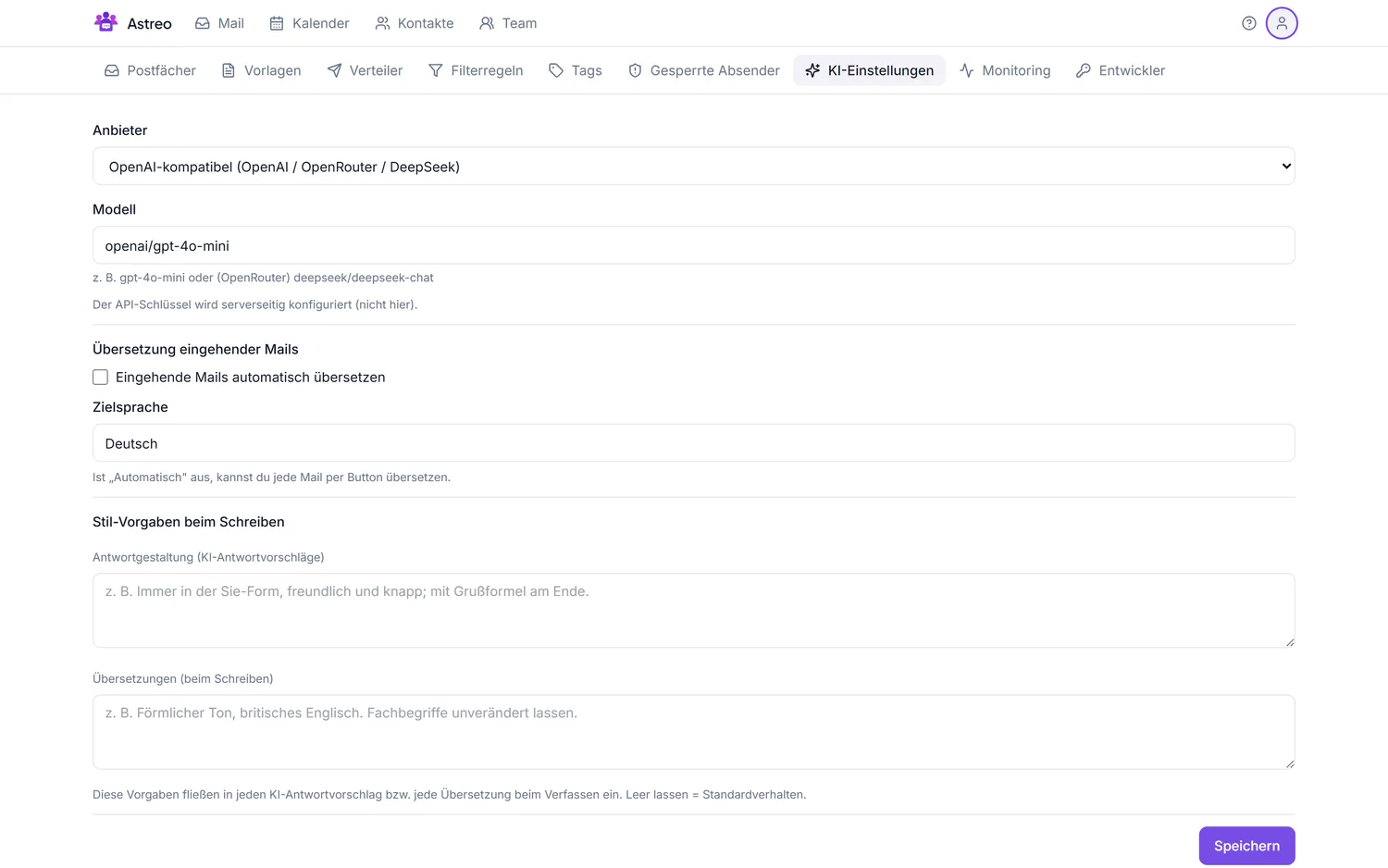
1. Open the AI settings
- Open the Settings via the gear icon (top right, next to your profile).
- Switch to the AI settings tab.
2. Keeping an eye on your quota
If your team has a monthly quota configured, a bar at the bottom of the AI settings shows current usage (in tokens) against the limit - shared across all members of your organization. An exceeded quota only blocks the AI features if your operator has explicitly turned that on; by default it just informs.
3. Translation & style guidance
- Auto-translate incoming mail: enable if foreign-language mail should be translated directly - otherwise you translate each mail by click.
- Target language: e.g. German (or "Automatic").
- Style guidance: short hints that flow into every suggestion - e.g. "always formal, friendly and concise, with a sign-off" for replies, or "formal tone, keep technical terms unchanged" for translations.
Don't forget to save.
4. Use the features
- Reply suggestion: creates a draft from the thread that you edit.
- Translate: translates a message or your reply draft.
- Grammar: smooths style and grammar before sending.
All outputs are drafts - sending stays your deliberate decision.
5. Privacy & cost
- Only the needed context goes to the AI (the relevant thread/excerpt), not the whole mailbox.
- No auto-send: the AI never writes to customers on its own.
- Cost is included in the subscription and runs through the shared team quota (see above).
Background: AI features.