Commitments, ownership & cover
What was promised, who takes care of it — and what happens when someone is away.
Many emails contain a promise: “We'll get back to you by Friday”, “I'll send you the documents next week”. Clear picks out sentences like these and turns them into commitments that don't get forgotten. And because a case without an owner just sits there, Clear makes sure every new case quickly belongs to someone — even when someone is on holiday.
Commitments
When it analyses an email, Clear looks for sentences that promise something and tells two directions apart:
- “Our commitment” — your company promised something. The person who holds the case is responsible; if nobody holds it yet, the commitment stays without a person for now.
- “Their commitment” — the customer or supplier promised something. Then you wait: Clear sets an open case to “Waiting”, and it appears in the Watch stack.
Every commitment becomes a task on the case — in the same place as the tasks you create by hand. If the sentence names a date, it becomes the due date. A date without a time means the end of that day: what counts is the end of the team's business hours, or 6 pm if no business hours are set.
Suggestion or commitment
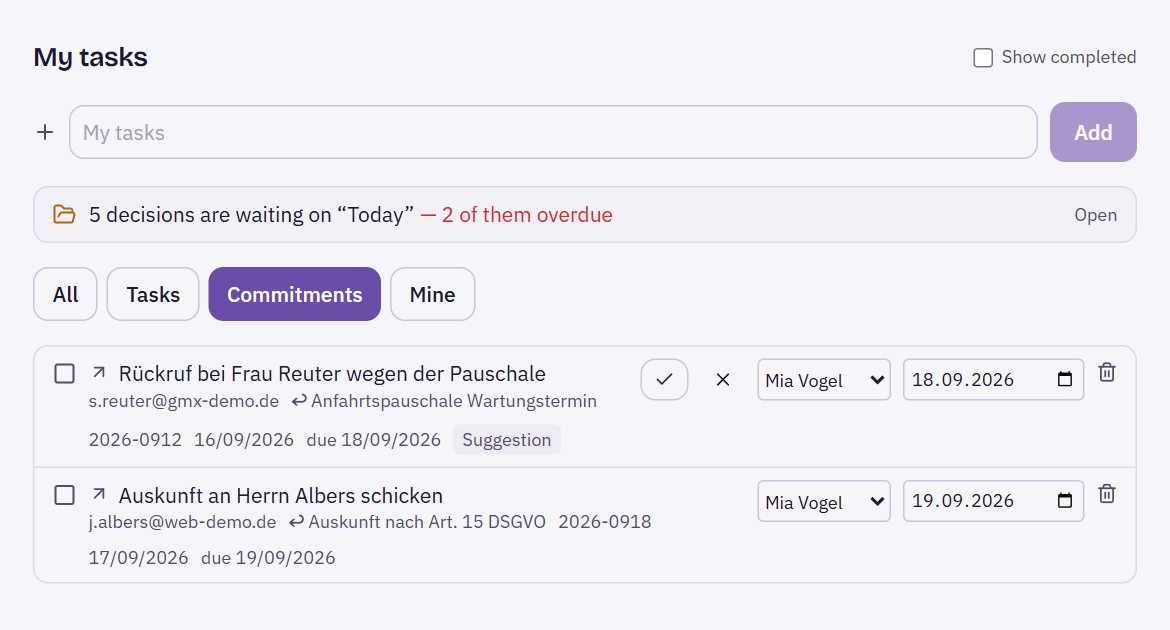
In “Suggest” mode — the default — a detected commitment starts out as a suggestion. In the task list it carries the badge “Suggestion” and two buttons:
- “Confirm as a commitment” — from now on it counts.
- “Not a commitment” — the model got it wrong; the suggestion disappears.
Whatever a person has confirmed or completed stays as it is, even if Clear analyses the email again later and comes to a different result. Unconfirmed suggestions, on the other hand, are brought up to date with every new analysis.
When a commitment falls due
Only confirmed commitments have an effect. When one is due and still open, Clear brings the case back to “Decide” — a waiting case becomes open again — and writes a follow-up draft. For your own commitment that means: you get in touch. For theirs: you chase it up. This happens once per commitment and is recorded in the case history.
Commitments in Tasks
Under Tasks, the filter “Commitments” shows exactly these entries. An arrow in front of the title shows the direction — outwards for “Our commitment”, inwards for “Their commitment” — with the counterpart and case number below. Clicking the title opens the email. You tick off a commitment like any task using the checkbox in front of it; “Show completed” brings it back into the list. The case card also lists the open commitments of the case.
Ownership: who does the case belong to?
A new case without an owner is unowned. Everyone in the team sees unowned cases — and that is exactly why nobody feels responsible. So Clear suggests a person for every new case, as long as it is a request from a human or remains unclear; newsletters and automated notifications get no suggestion, and neither do hidden cases.
How Clear suggests
The candidates are the members of the teams that own the mailbox or have it shared with them. Clear chooses like this:
- Anyone who is away is left out. This is based on the out-of-office notice: a notice that is switched on and within its period — or has no period — counts as away.
- If Clear cannot place the case with confidence, it goes to the team's fallback person, if one is set.
- Otherwise it goes to whoever has already corresponded with this counterpart.
- If nobody has, it goes to whoever currently has the fewest open cases.
Clear gives the reason, for example “has already corresponded with this counterpart”. In the case window the suggestion is preselected at “Take it”, with the note “Clear suggests you”. In the mail view the case card asks “Will you take this case?” or whether another person should take it.
Accept or object
- Yes / Take it — the case belongs to the suggested person.
- No — the suggestion does not come back. The case stays without an owner until someone takes it. A no is final: whoever says “not me” is not asked again the next day.
Whoever assigns first wins. If two people click “Take it” at the same time, the faster one gets it; the other sees the message “Someone was faster: the case now belongs to another person.” A case that already belongs to someone is still handed over deliberately — see Deciding a case.
Assigning once the window has passed
If nobody objects, Clear can assign the case itself after an objection window. The default is 30 minutes, counted in business hours: a suggestion shortly before closing time doesn't go through overnight. This only happens when all three conditions are met:
- Clear runs in “Operate” mode — set by owners and admins under Settings → Billing & plan, see Suggest or operate. In “Suggest” mode a person always decides; the suggestion simply stays.
- The mailbox belongs to a team — without a team there is nobody who could object.
- “Assign automatically once the window has passed” is switched on in the team (default: on).
Every assignment by Clear is recorded with its reason in the history and in the log.
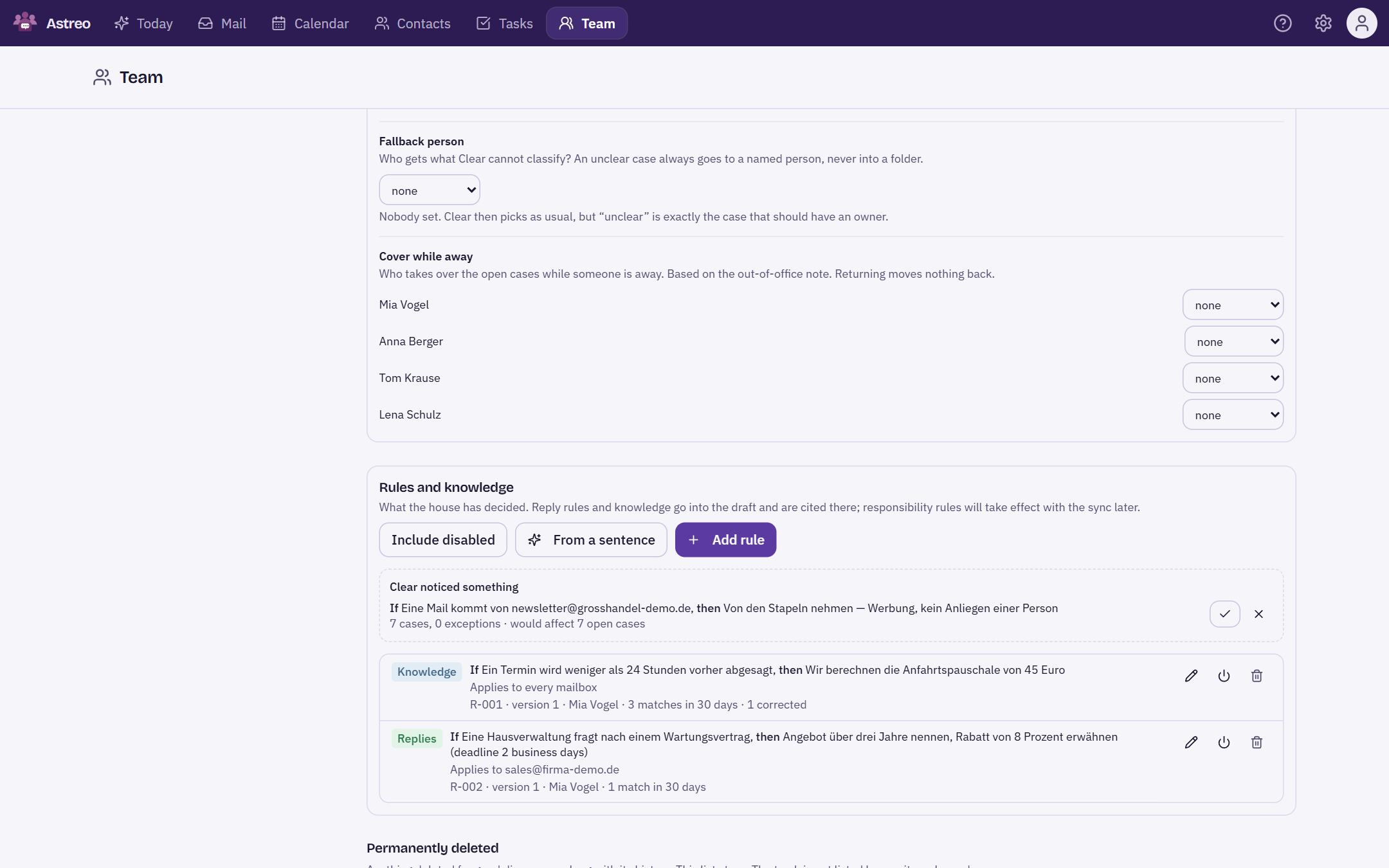
The fallback person
Whatever Clear cannot place should end up with a named person — never in a folder. For this, you set a fallback person for each team. If none is set, Clear chooses as described above; the team settings then point this out, because “unclear” is exactly the case someone should be responsible for.
Cover while away
For each team member you can set a cover. When the person is away — again based on their out-of-office notice — their open cases from this team's mailboxes go to the cover. Clear checks this every five minutes.
- Every move is recorded in the history, and the case card shows “standing in for …”.
- If the cover is away too, everything stays where it is — otherwise cases would travel from one empty desk to the next.
- Coming back moves nothing back. Whoever started finishes. If needed, you hand a case back by hand.
Where to set this
Under Team, in the section “Ownership and cover”. There you find the objection window in minutes, the switch for automatic assignment, the fallback person and the cover for each member. The section is visible to team owners and admins, and only when Clear is turned on for your company.