Set up templates
Create recurring replies as snippets and insert them in one click.
Templates (snippets) are reusable texts for common replies — acknowledgement of receipt, standard information, first reply to a complaint. They save time and keep the team's tone consistent. This guide shows how to create templates, personalise them with placeholders and insert them while composing.
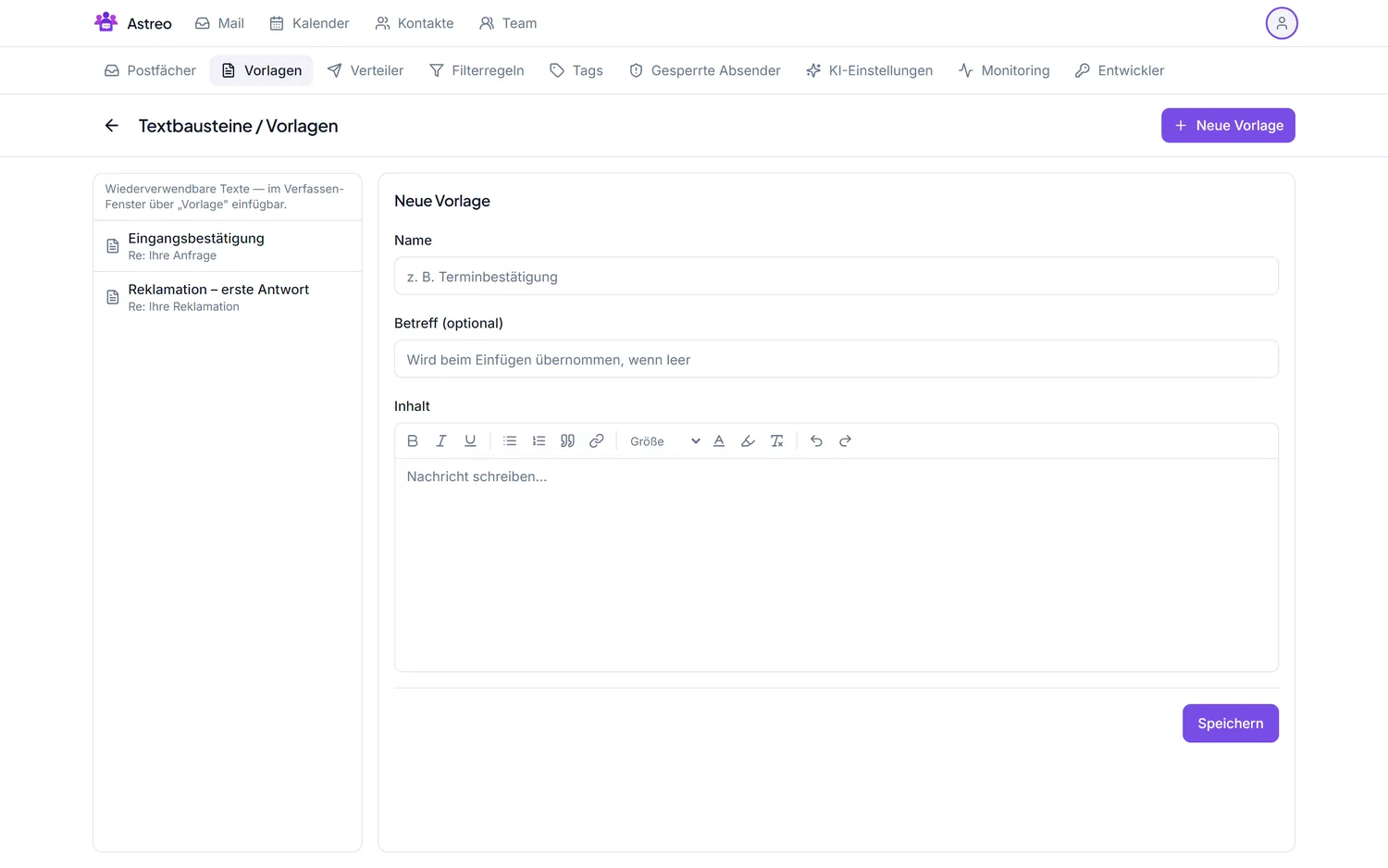
1. Create a new template
- Open the Settings via the avatar menu (top right) and go to the Templates tab.
- Click "+ New template".
- Give it a name to find it again (e.g. "Acknowledgement").
- Subject (optional): used on insertion if the subject field is empty — handy for standard subject lines.
- Write the content in the editor. It's HTML-capable: formatting, lists and links are possible.
- Save — the template appears in the list on the left.
2. Use placeholders
Like signatures, you can use placeholders such as {{name}} that are replaced
automatically on insertion. The template stays generic yet feels personal. Leave the template's subject empty if
you want to set it case by case.
3. Insert a template while composing
- Open a reply or click Compose.
- In the editor, choose the "Template" function and the desired template.
- The text (and subject, if any) is inserted; adjust as needed and send.
4. Tips for teams
- Name templates clearly and consistently (e.g. "Acknowledgement", "Complaint – first reply").
- Keep them short and neutral — a human adds the nuances when sending.
- Combine templates with AI: insert the template first, then tailor it to the case with AI.
- Maintain a small, curated set rather than many duplicates — it keeps the choice clear.