Set up a team inbox
Step by step: set up a shared mailbox like support@ for the whole team.
This guide walks you step by step through setting up a shared mailbox like support@ that your whole
team runs together — from inviting members to automatic pre-sorting. Time: ~10 minutes.
Prerequisite: the team features are part of the Team plan. To set things up you need the Owner or Admin role.
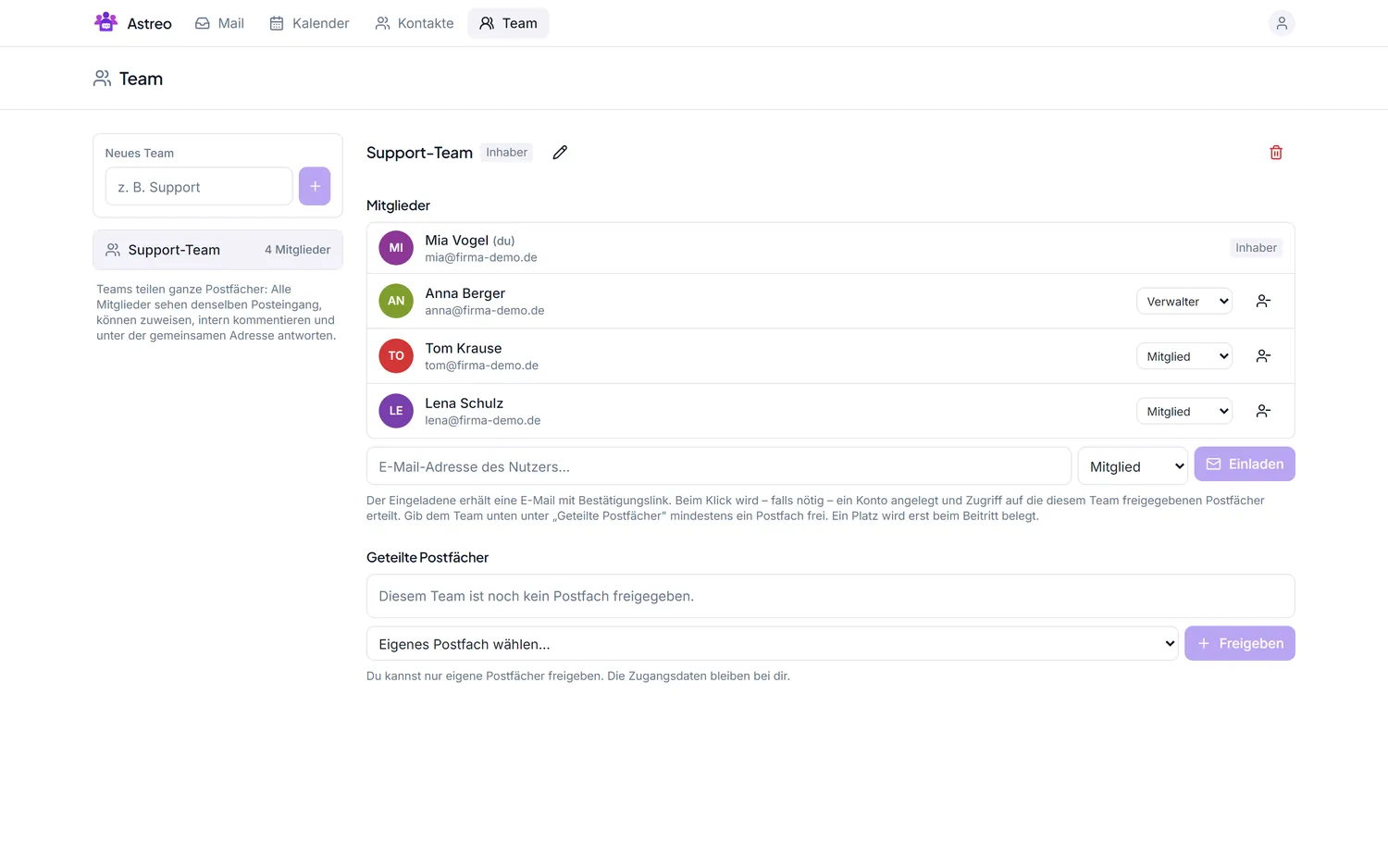
1. Create a team & invite members
- Open the Team section at the top.
- If no team exists yet, create one on the left under "New team" and give it a name (e.g. "Support team").
- In the "User's email address" field, enter a colleague's address, choose the role and click Invite. They receive an email invitation and sign in with their own login.
- The roles at a glance:
- Viewer: reads along but can't reply or change anything.
- Member: works on threads — assign, reply, notes, tags.
- Admin: additionally manages members and team settings.
- Owner: full control including billing.
Roles can be changed later anytime via the dropdown next to each member.
2. Share a mailbox with the team
- Make sure the shared mailbox (e.g.
support@company.com) is connected — see Connecting mailboxes. - In the Team area under "Shared mailboxes", pick the account at "Choose your mailbox…" and click Share.
- From now on all members see this mailbox's threads and work on them together. Note: a seat is only used once a member joins.
The mailbox credentials stay with you — what's shared is team access, not the password.
3. Responsibilities & assignment
- Decide who triages the inbox each morning (review and roughly assign).
- Open a thread and choose the owner under "Assigned to" at the top.
- Each person filters the list via "Mine" (assigned to me) and works through their cases.
- An assignment can be changed or handed back at any time — so it's always clear who's on it.
4. Internal notes & collision detection
Coordinate right on the thread via internal notes — visible to the team only, never to the sender. When someone starts replying, collision detection shows it in real time so no duplicate answer is sent.
5. Check send-as
Reply from the team mailbox so mail goes out under the shared address (e.g.
support@company.com) instead of your personal one. Internally it stays traceable who actually sent it.
6. Pre-sort automatically (optional)
With filter rules you sort incoming threads right on arrival: e.g. tag everything from a domain with a tag and assign it to the responsible person automatically.
Tips
- Start with three statuses (open, in progress, done) and one person triaging — that prevents duplicate work from day one.
- Use internal notes instead of parallel chats so context stays on the case.
- Background & details: Team inbox.