1 · The idea
Cases instead of mails.
A shared inbox shows you mails. But the work is about matters: a complaint, an enquiry, a question about an invoice. One matter often means two or three mails, a phone note, a commitment and, at some point, our reply.
Clear reads the incoming mail, gathers what belongs to one matter and turns it into a numbered case. Every case gets what you need to decide: what it is about, what is expected, by when, what the tone is, who should work on it. And where a reply is needed, a ready draft with sources.
Clear then puts every case on one of four stacks. The stack tells you what a person has to do with it now:
1 Decide
Goodwill, price, legal questions, anything unclear. Everything where Clear cannot go further and should not guess.
2 Release
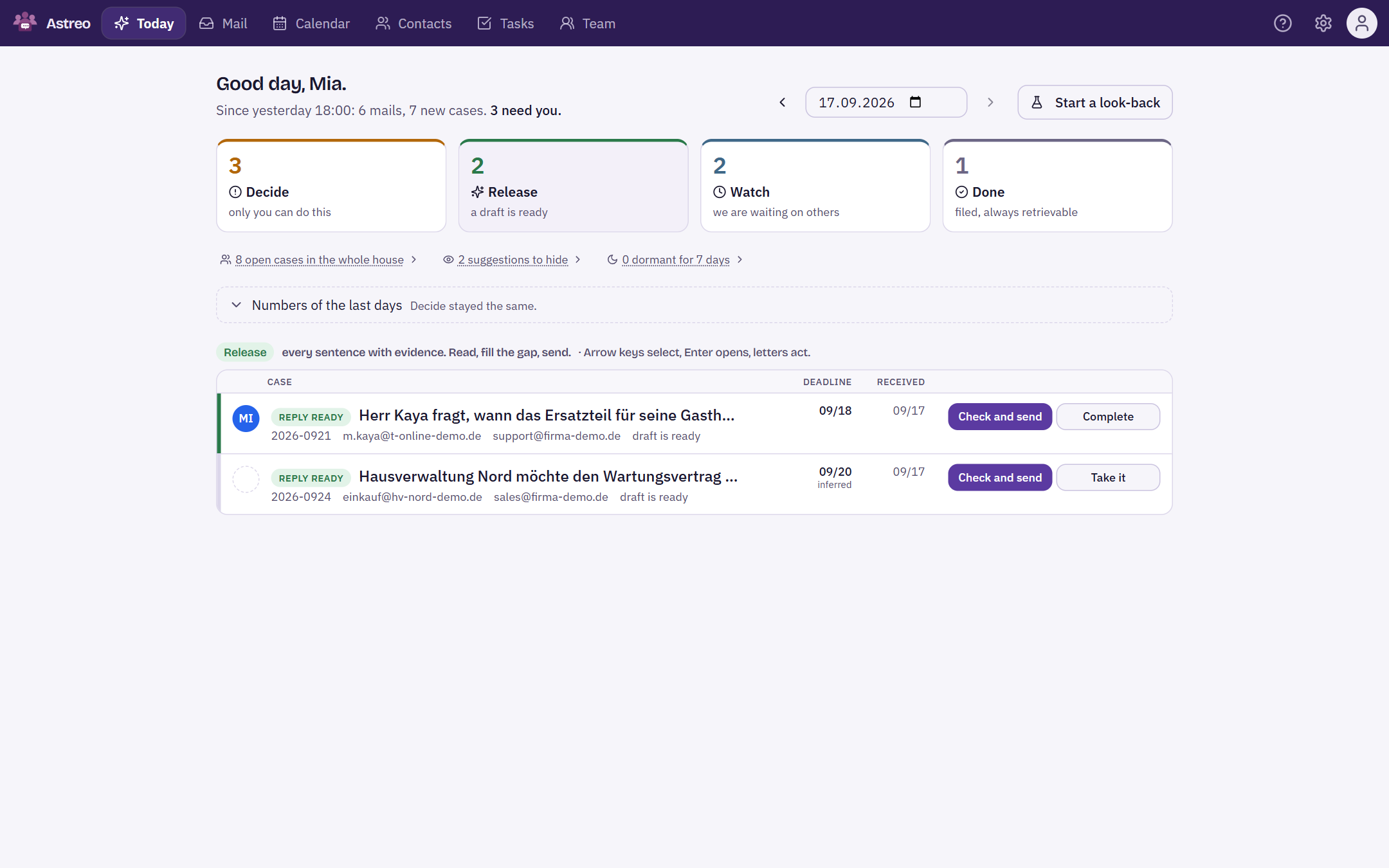
The draft is ready, every sentence with a source. Read it, fill the gap, send.
3 Watch
We are waiting for the other side or have set a reminder. Clear brings it back when it is time.
4 Done
Completed or sorted out, always with a reason, and can be brought back at any time.
The promise
Clear writes drafts. Clear never sends. Every mail that leaves the company has been read and sent by a person. What Clear cannot back up with a source, it leaves open as a gap, and as long as a gap is in the text, the Send button stays locked.
2 · What you get
The usual problems of a shared inbox, and what Clear does about them.
| In a shared inbox | With Clear |
|---|---|
| "Everyone feels responsible, but nobody quite is." | Every case has an owner. Clear suggests who should take it and says why. One click confirms or hands it over. |
| Two colleagues reply differently. | One case, one draft. Whoever opens it can see that someone is already on it. |
| Deadlines get lost. | Deadline and commitments are on the case. Anything overdue moves up and turns red. |
| Mails sit with someone who is on holiday. | A cover visibly takes over open cases while someone is away. |
| "Nobody knows whether this is done yet." | The state is on the case, the same for everyone. Done means: with a reason, can be brought back, traceable in the log. |
| Writing replies takes time. | The draft is already there, every sentence with a source. You check instead of writing from scratch. |
Data protection. The AI behind Clear is operated by Mistral AI SAS in Paris; processing takes place in the European Union and is governed by the data processing agreement. You decide per mailbox which mailboxes Clear may read (see section 3).
3 · Set up first
Five things before you start.
The owner or an admin does most of this once. After that, the team only works on the Today page.
-
Connect mailboxes and share them with the team
Under Settings → Mailboxes you connect the addresses the team works on together, such as
info@andsupport@. Under Team you share these mailboxes and add your colleagues. This is also where you decide who may assign, complete, report spam and delete. -
Decide which mailboxes Clear may read
In Settings → Mailboxes → Edit account you find the switch "Clear reads this mailbox". If it is off, no model sees the mail of this mailbox; it then works as a shared mailbox with assignment, but without cases and drafts.
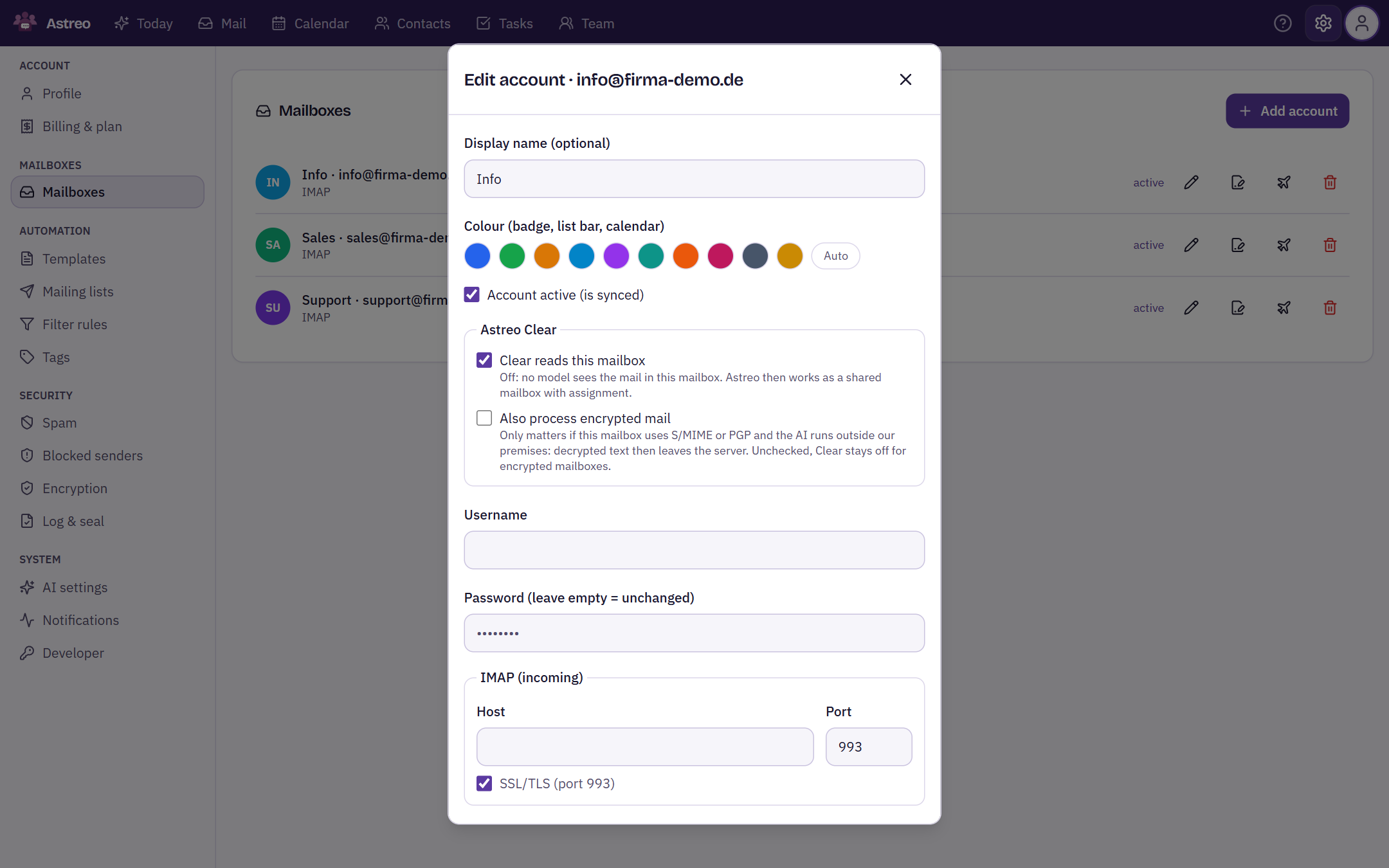
You decide per mailbox whether Clear reads along. Encrypted mail is only analysed by Clear if you explicitly allow it. -
Set a fallback person and covers
Under Team you choose a fallback person for everything Clear cannot place, and a cover while away for each person. An unclear case therefore always ends up with a named person, never in a folder.
-
Enter rules and knowledge
What applies in your company, Clear writes into the drafts and cites there as a source: reply deadlines, prices, responsibilities, goodwill rules. You create a rule in one sentence, the way you would tell a new colleague, for example "Cancelling an appointment less than 24 hours ahead costs the call-out fee". Clear turns it into an if-then card, shows which cases it would have matched, and you confirm.
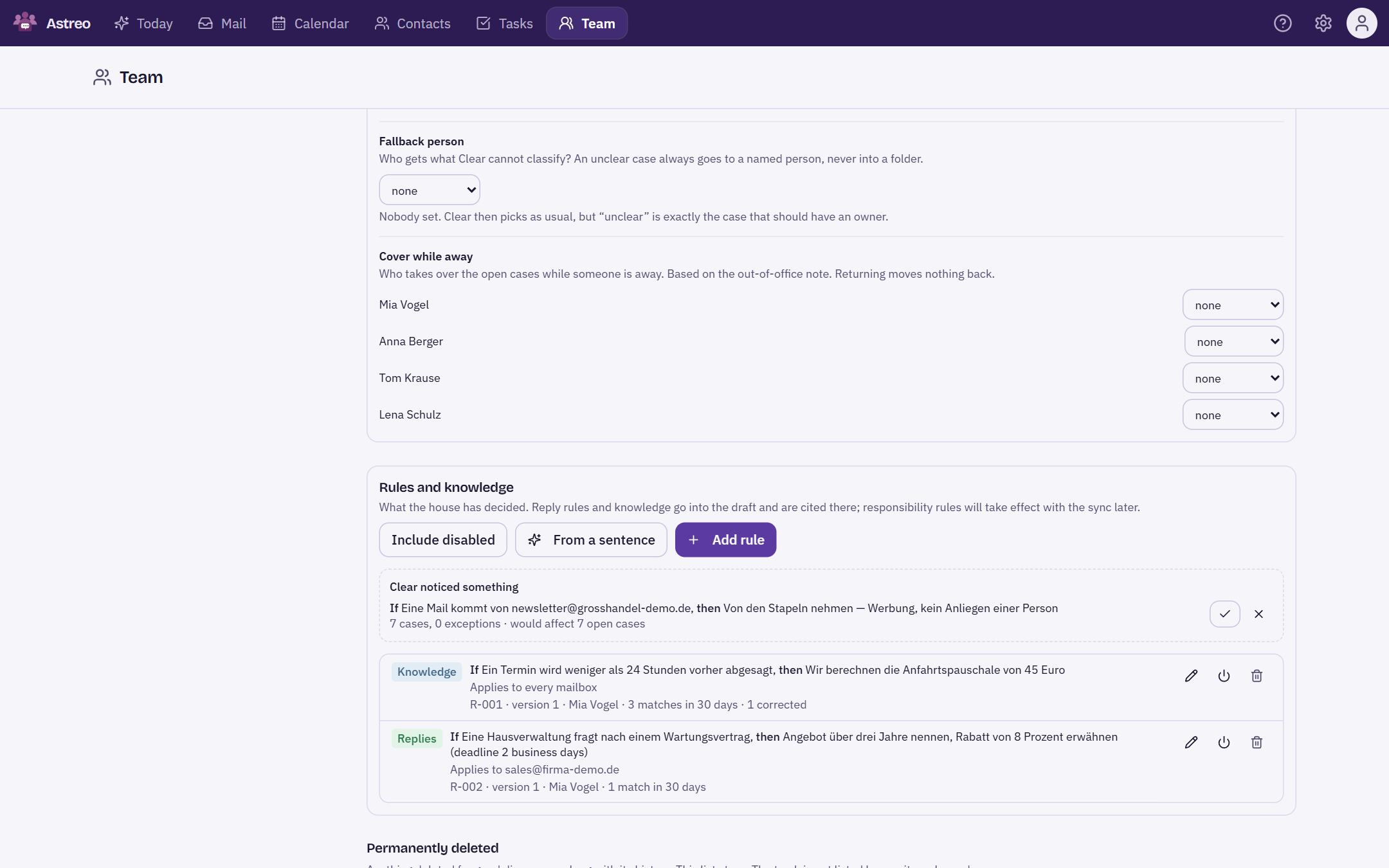
Team → fallback person, cover and rules. Later, rules are usually created right at the case with "Turn this into a rule". -
Start with a look-back
You don't have to wait for new mail. On the Today page, an admin starts a retrospective analysis from a date of your choice with "Start a look-back". Afterwards you see for each day what the Today page would have looked like, with every source and every gap. This way the team gets to know Clear on real, familiar cases.
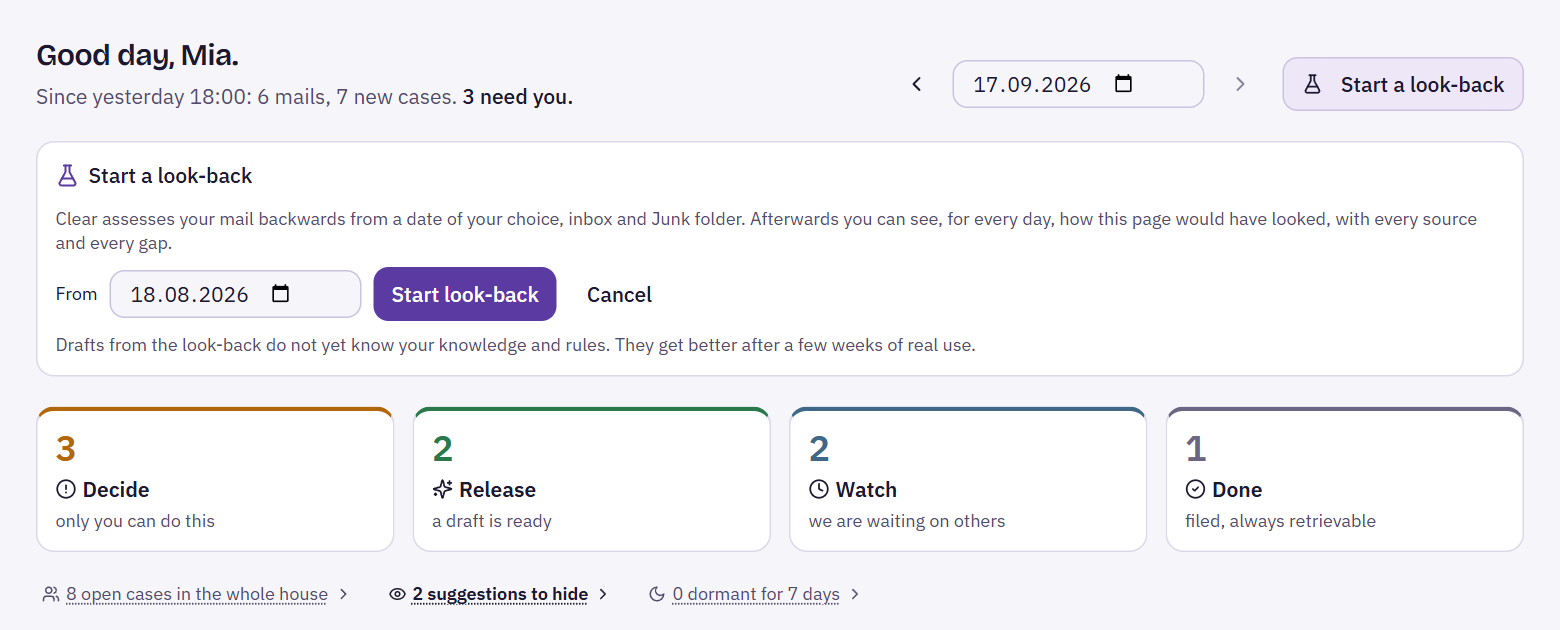
The look-back analyses the inbox and junk folder from the chosen date. Drafts from it do not know your rules yet; after a few weeks of use they get better.
4 · The Today page
One look, and you know what is due today.
The Today page is your workplace. At the top, one sentence says what has come in since 6 pm yesterday and how many cases need you. Below that, the four stacks with their counts. A click on a stack shows its list.
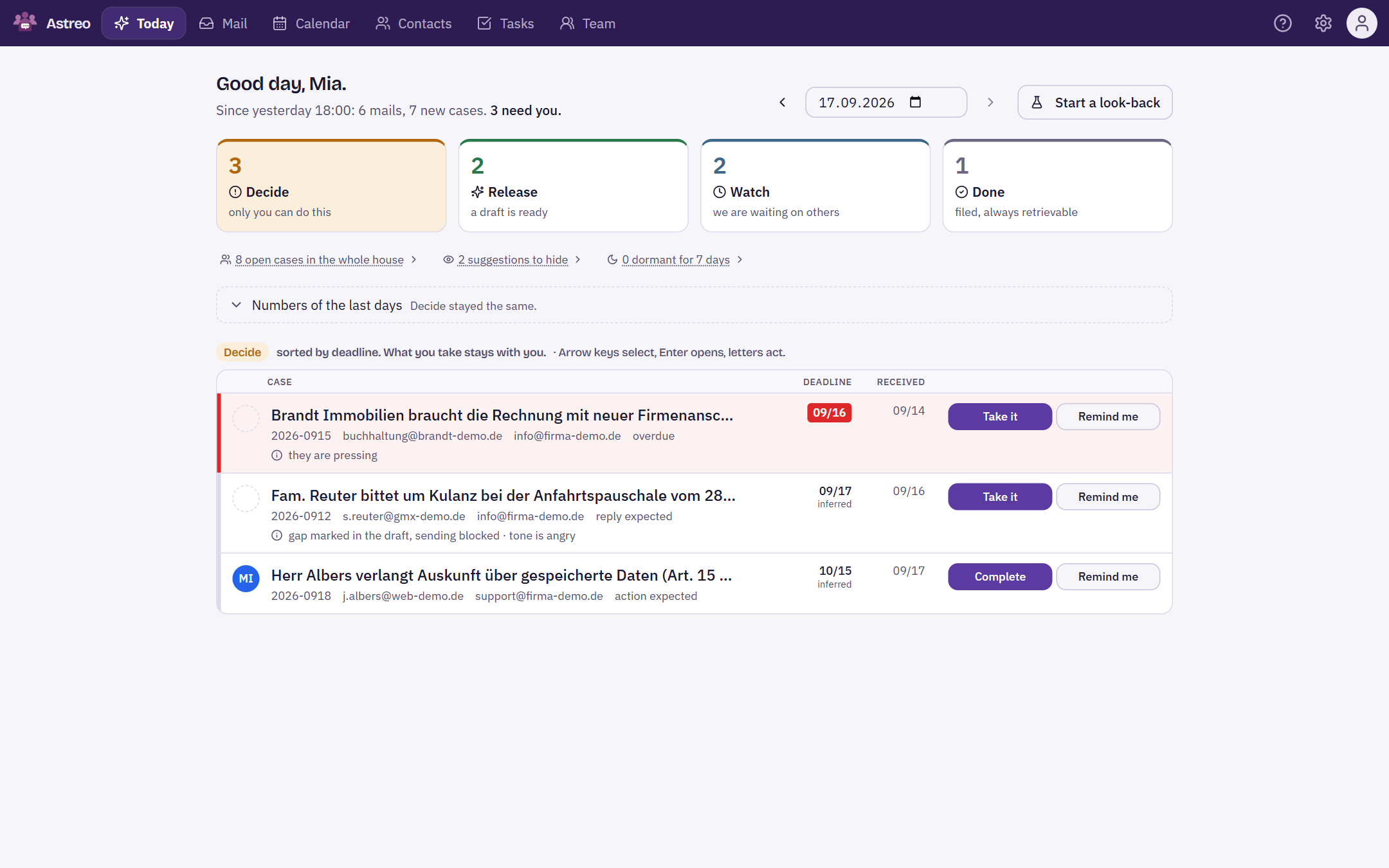
What a row tells you
- Title: what it is about, in one sentence from Clear, not the mail's subject.
- Deadline: by when. The small addition says where it comes from: "inferred" means the mail names no date and Clear derived it from the context.
- The third line: what Clear has done, for example "2 mails bundled", "gap marked in the draft, sending blocked" or "tone is angry".
- Buttons on the right: the one or two actions most often needed on this stack.
Release: the draft is ready
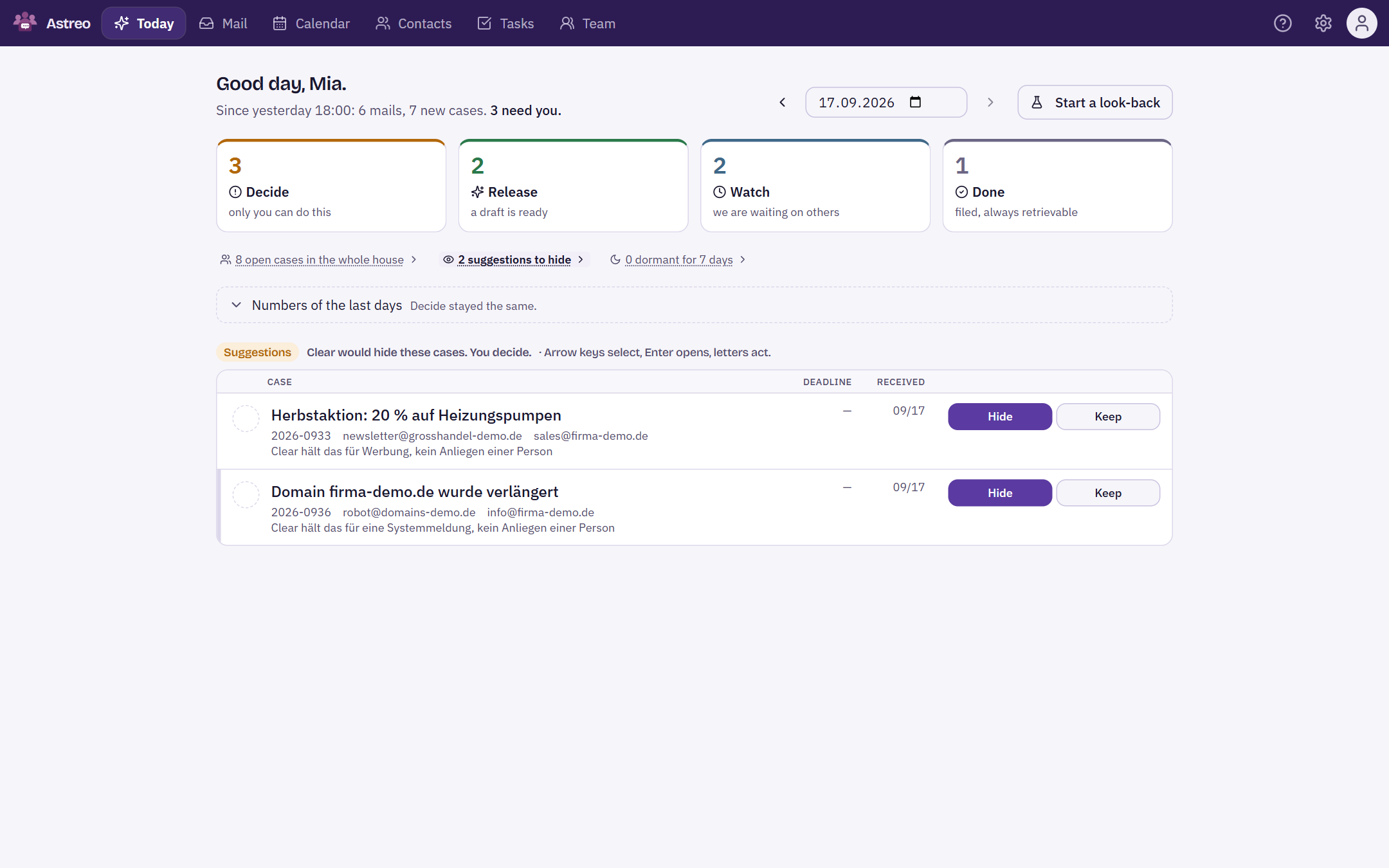
Suggestions: what Clear would sort out
Clear recognises advertising, newsletters and system messages and keeps them off the stacks. Where it is not sure, it asks: under "suggestions to hide" you find such cases with a reason. You decide with Hide or Keep, and Clear remembers the correction.
5 · Working on a case
Open, decide, next. Without leaving the Today page.
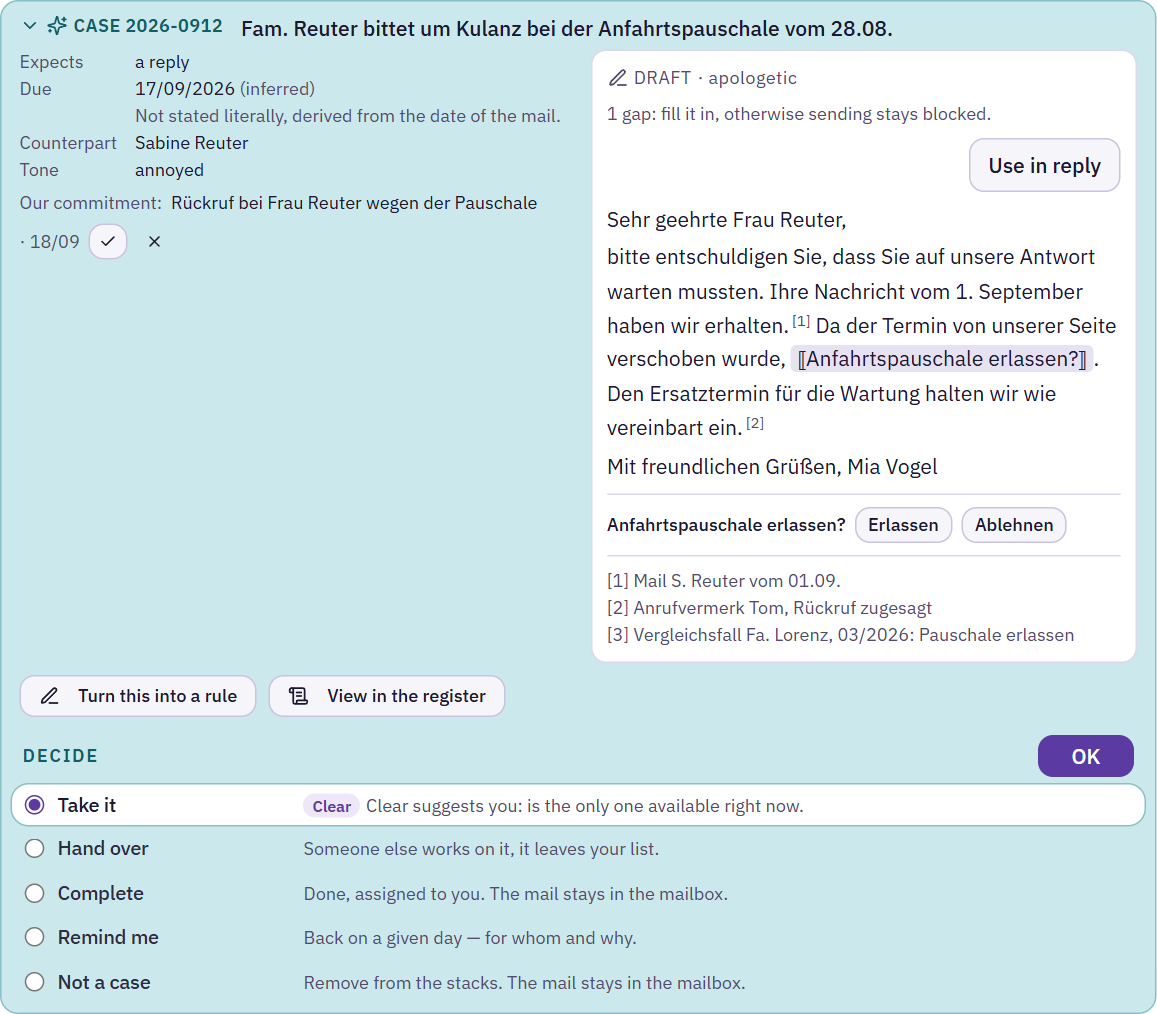
A click on a row opens the case in a window above the list. On the left is the context, on the right the reply.
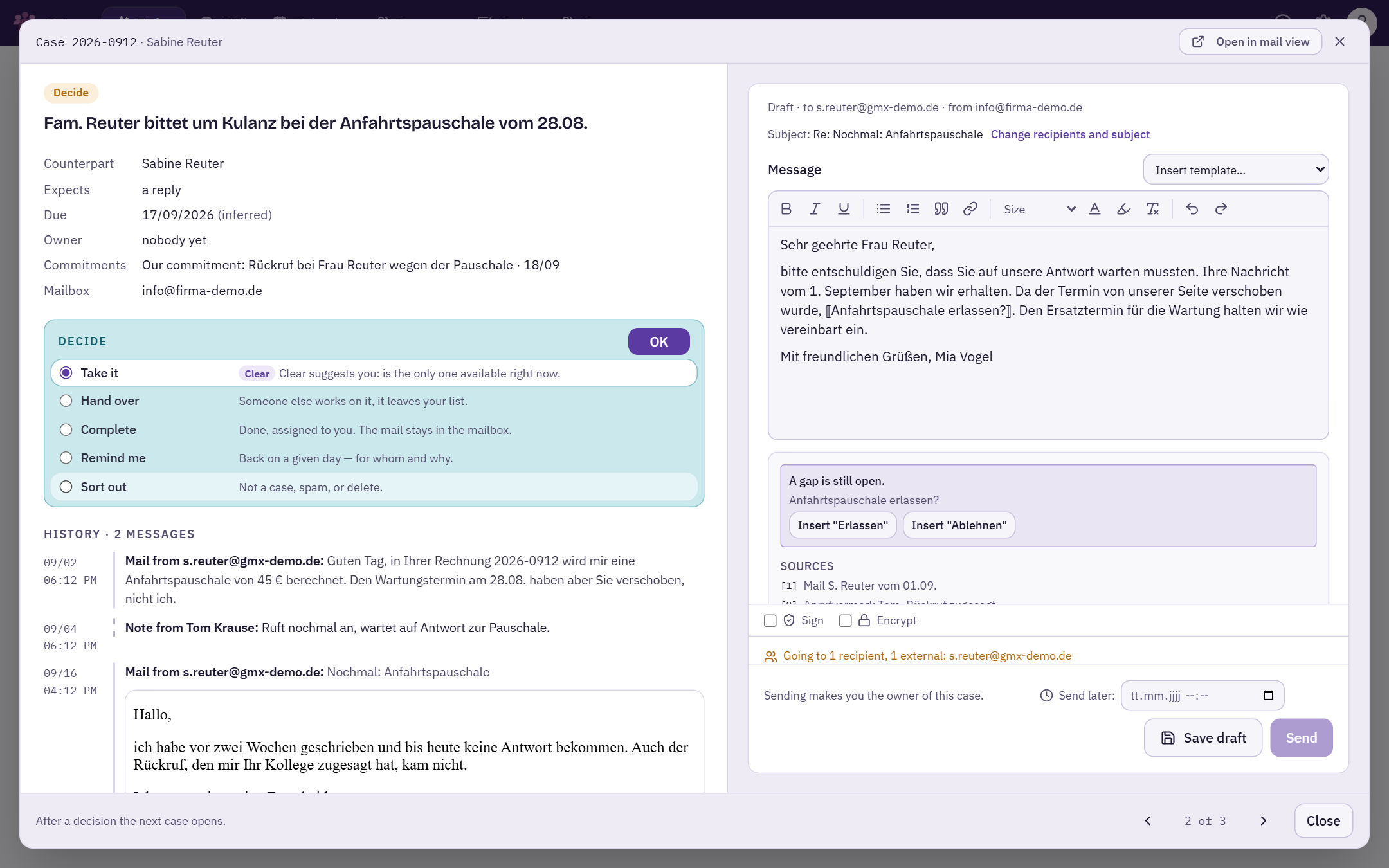
Left: the context
- Key facts: counterpart, what is expected, deadline, who has the case, open commitments, mailbox.
- Decide: what happens to the case, see section 6.
- History: all mails and notes of the case. A click on a row expands the mail. External images stay blocked at first to protect against tracking pixels.
- Create a rule from this case: if you notice while reading "that's always the way we do it", say it here in one sentence.
Right: the draft with sources
The draft sits right in the reply field and can be edited freely. Below it you see what each sentence is based on: the mail of 1 September, the phone note, a comparable case.
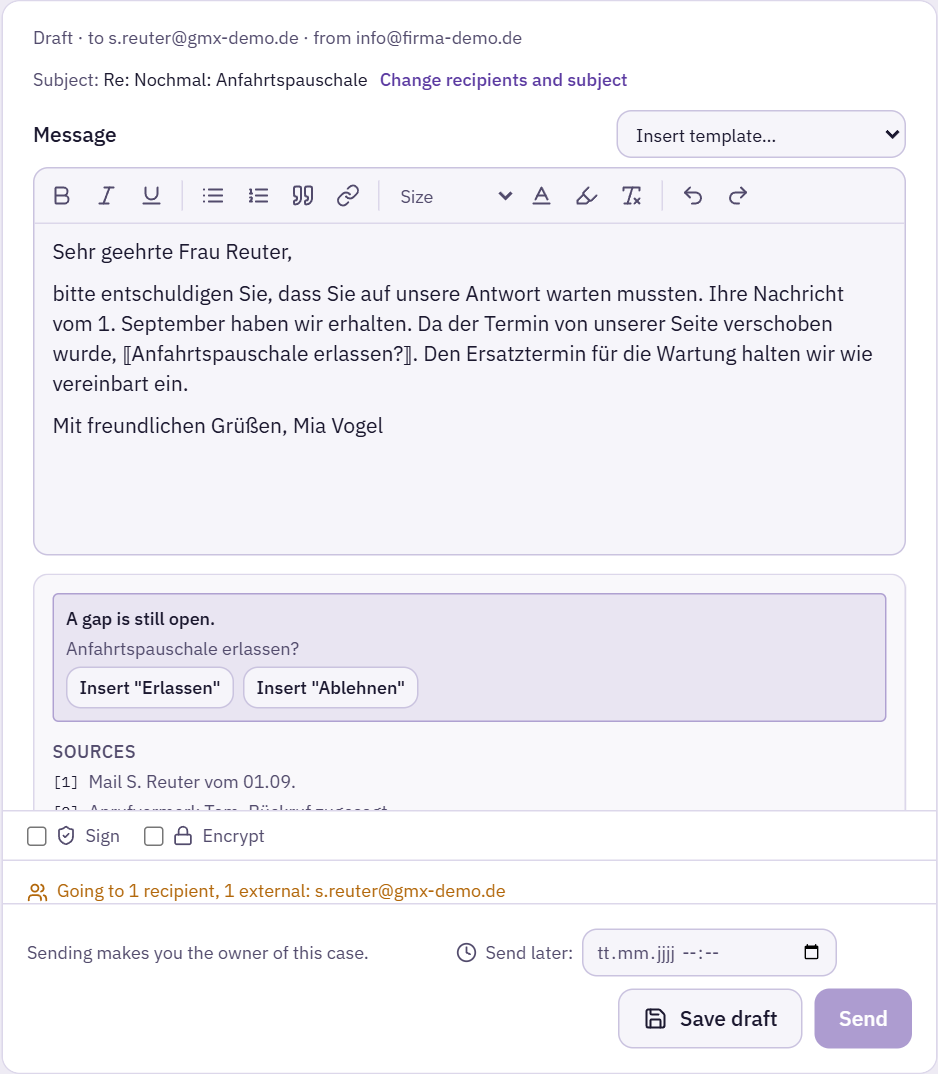
If there is no draft, the right side shows an empty reply field with your signature. You can still generate one with "Suggest reply".
Sending makes you the owner of the case. If it does not belong to anyone yet, it is assigned to you; this is also noted next to the Send button. A case that already belongs to someone is not taken away from that person by your reply.
On to the next one
After every decision and after sending, the next open case of the stack opens. Use the arrows at the bottom right or the arrow keys ← → to page through by hand. Close or Esc takes you back to the list; nothing happens to the case. In the list, "Undo" appears for a few seconds in place of the case you just worked on.
6 · Deciding
One list, one button.
Everything that can happen to a case is in the "Decide" box. Each option is a row with half a sentence on what happens next. You pick a row and confirm with OK.
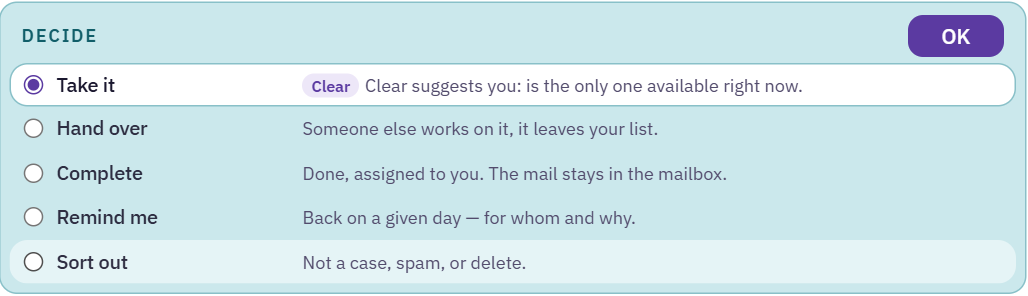
| Decision | What happens |
|---|---|
| Take it | The case belongs to you and stays on your stack. The window stays open; usually you reply right away. |
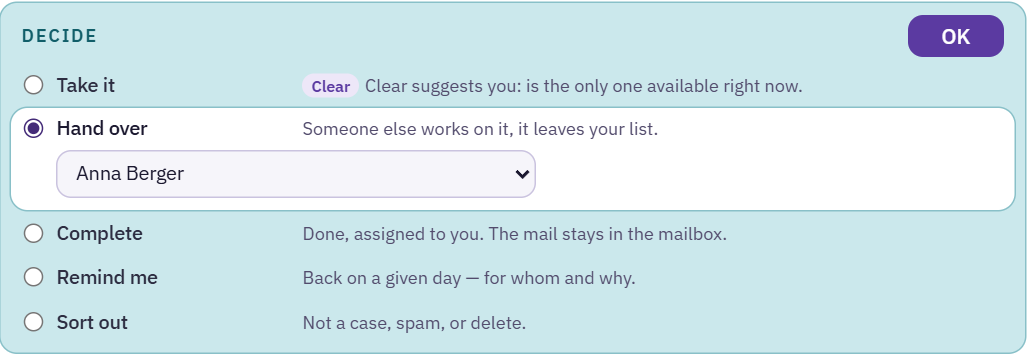
| Hand over | You choose a colleague. The case leaves your list. |
| Complete | Finished. The mail stays in the mailbox, the case moves to "Done". If it does not belong to anyone yet, it is assigned to you. |
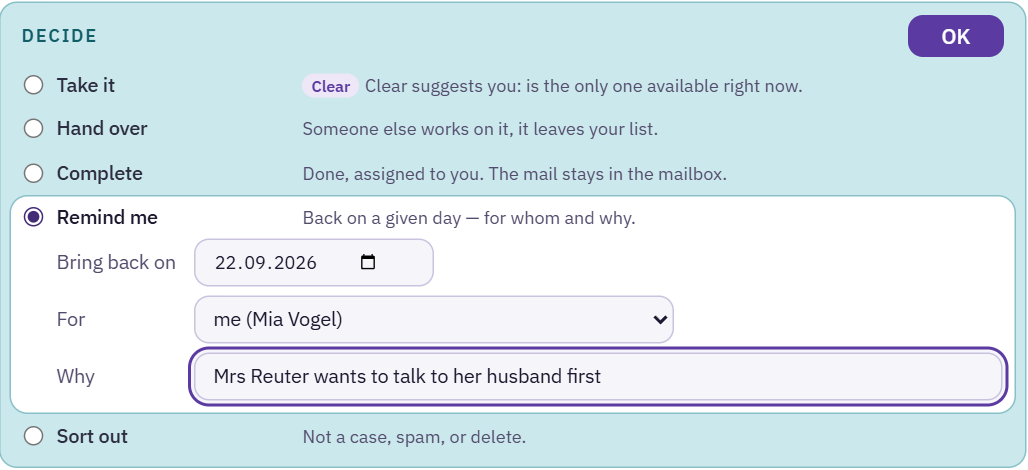
| Remind me | Back only on a given day, with a person and a reason. See below. |
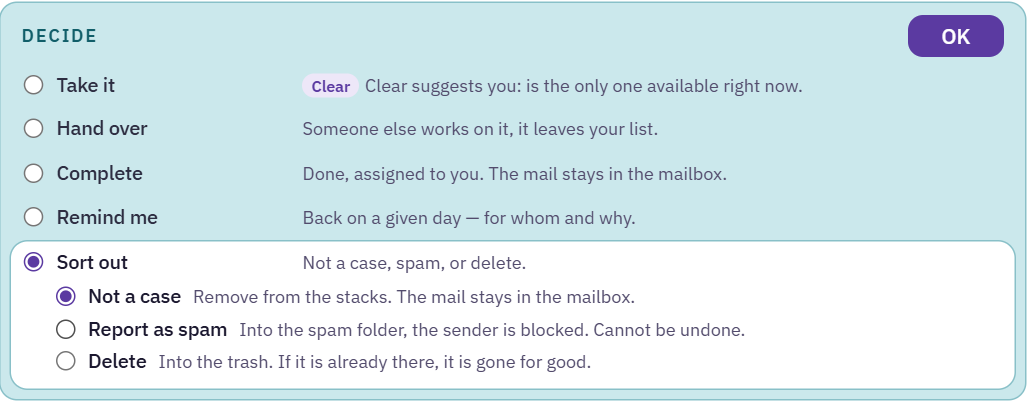
| Sort out | Not a case, report as spam or delete. Spam and delete ask first. |
Remind me: when, for whom, why
A reminder is the honest form of "not now". It needs three things: the day, the person who will have the case then, and the reason. Until then the case sits under "Watch" and stays visible to the team. The reason is saved as a note on the case, so on the day itself everyone knows what was being waited for.
7 · In the mail view
The same case, right next to the mailbox.
If you prefer working in the familiar mail view, you find the same case there: above the mail is a box with the key facts, the draft and, below it, the same "Decide". Reply, forward, attachments, print as well as spam and delete are in the bar above the mail as usual.
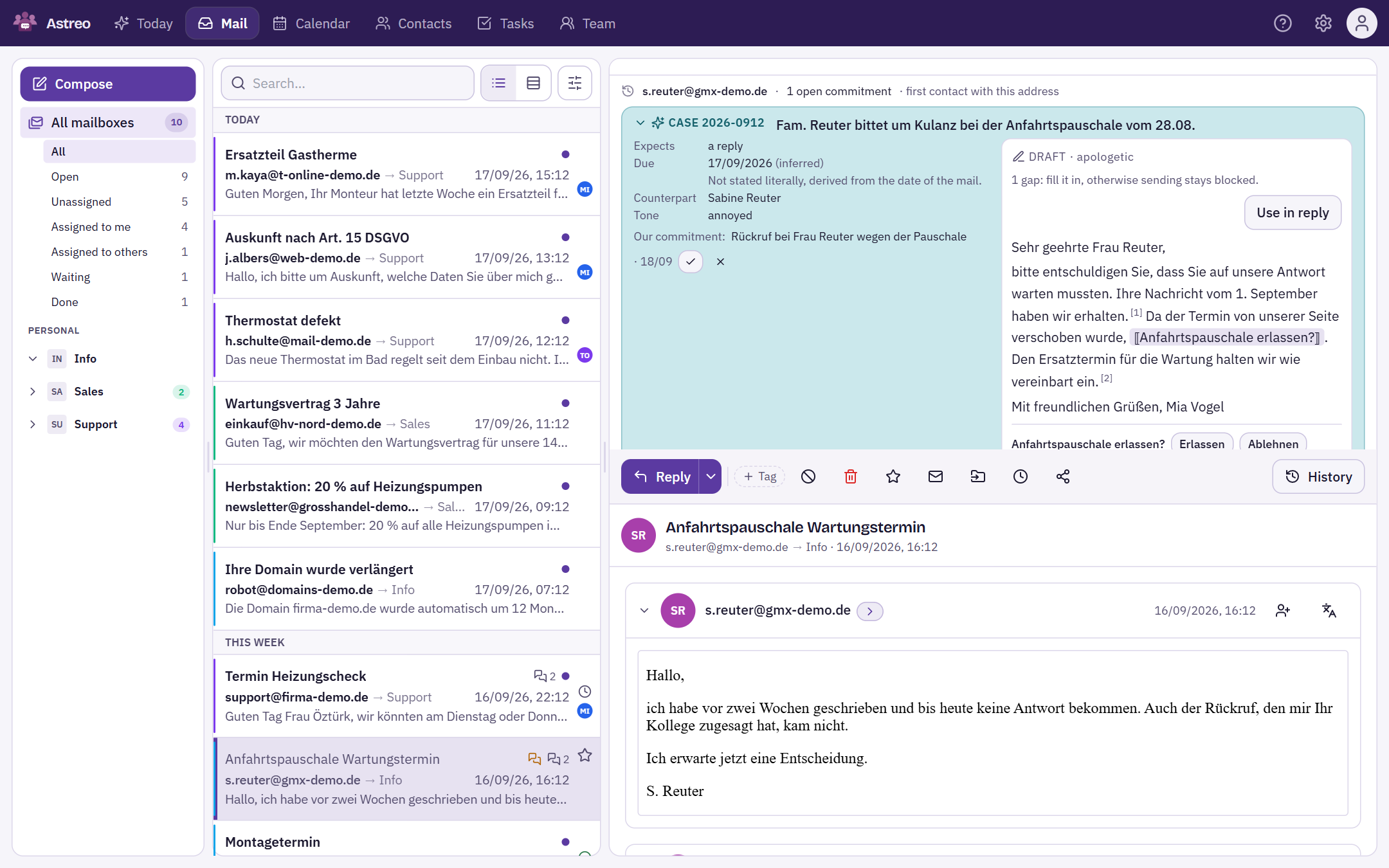
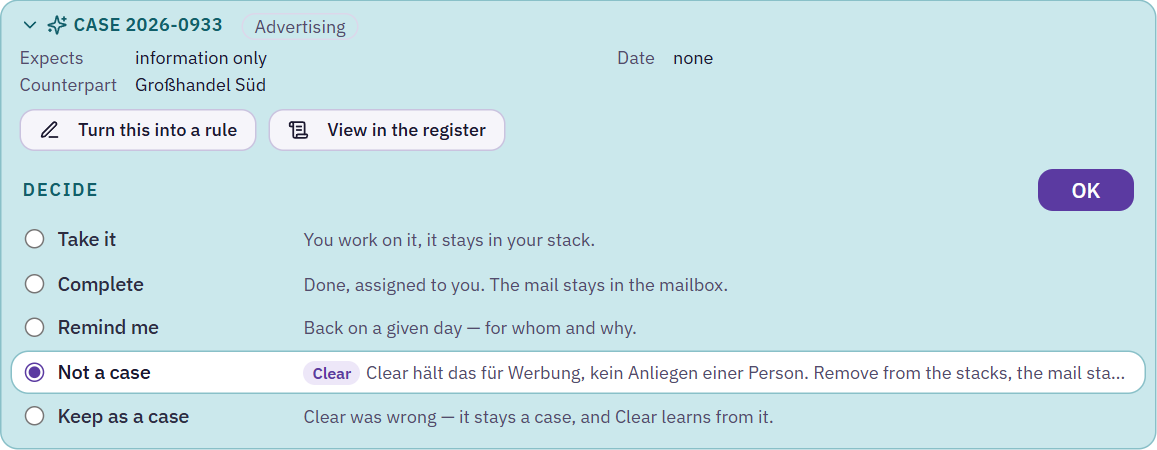
After "Not a case", Astreo asks in a short notice whether future mail from this sender should be hidden as well. That is a question afterwards, never a default.
8 · Keyboard and tips
Twenty cases without reaching for the mouse.
| Key | Effect |
|---|---|
| ↑ ↓ | Select a row in the list |
| Enter | Open the case. Enter only opens and never changes anything. |
| U S W A B O | On the selected row: Take it, Complete, Remind me, Hide, Keep, Reopen. The letters come from the German labels and are the same in every language. Only what is available as a button on the row works. |
| ← → | In an open case: previous and next case |
| Esc | Close the window, back to the list |
Three habits that pay off
- Clear "Decide" in the morning. It is usually only a handful of cases, and only you can resolve them.
- Create rules at the case. When you fill the same gap for the second time, that is a rule. One sentence is enough.
- Don't ignore suggestions. Every "Keep" and every "Hide" makes Clear more accurate for your company.
9 · Frequently asked questions
Frequently asked questions.
Does Clear ever send a mail itself?
No. Clear writes drafts; only people send. As long as a gap is in the text, sending is locked, in the browser and additionally on the server.
What happens if Clear places a case wrongly?
You decide differently: another row in the "Decide" box, "Keep as a case" or "Case again". Nothing is deleted, every decision can be undone, and Clear learns from the corrections.
Does everyone on the team see all cases?
Everyone sees the cases of the mailboxes shared with them. "Decide" and "Release" only show what belongs to you or to no one yet; under "open cases in the whole house" you see the rest.
Does my customers' mail go to an AI in the USA?
No. The AI is operated by Mistral AI SAS in Paris, and processing takes place in the EU. You can switch Clear off completely per mailbox.
Where can I see who decided what?
In the log. Open it at the case with "View in the register" or under Settings → Log & seal.
Can Clear act on its own instead of only suggesting?
Yes. The default is "Suggest" mode: sorting out, commitments and ownership wait for confirmation. In "Operate" mode, Clear hides advertising and the like itself, confirms detected commitments and assigns cases once the objection period has passed, where the team allows it. Owners and admins switch it under Settings → Billing & plan in the "Astreo Clear" card. Even then, only people send.